Leave
Manage leave, compensatory-off, and work-from-home requests, approvals, and balances.
Use Leave to review time away from work, submit requests, and complete approval tasks assigned to you. The views and actions you see depend on your permissions and reporting relationships.
Leave views
The Leave workspace contains seven views:
- My Leave — review your leave calendar and request history.
- Leave Requests — review leave requests that need your attention.
- Comp Off Requests — submit and track your compensatory-off requests.
- Comp Off Approvals — approve or reject compensatory-off requests.
- WFH Requests — submit and track work-from-home requests.
- WFH Approvals — review work-from-home requests.
- Leave Balance — compare used and available leave by leave type.

My Leave
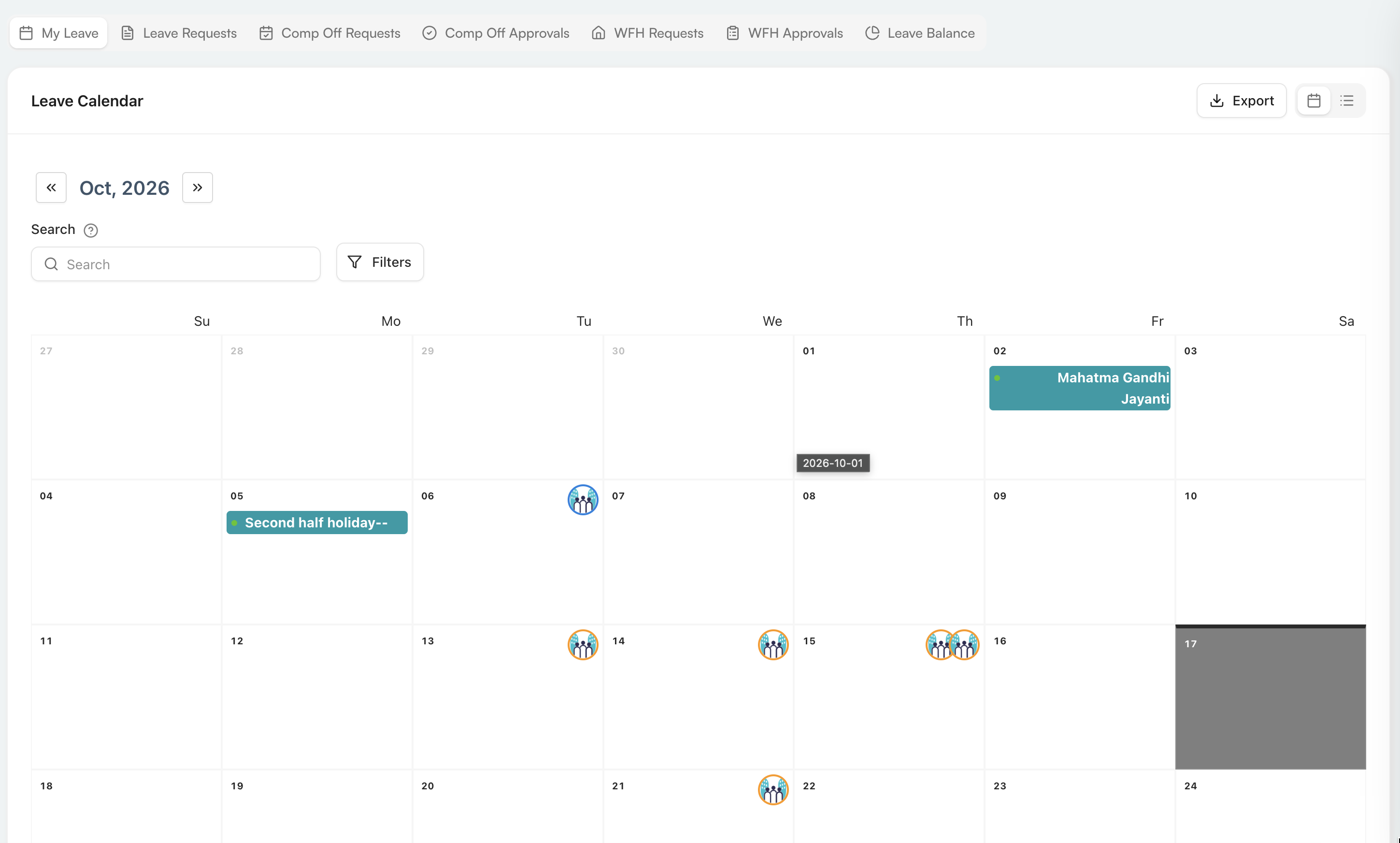
Calendar view
The calendar shows holidays and leave activity for the selected month. Use the arrows beside the month to move backward or forward. You can search, open Filters, export the displayed data, or use the view toggle in the upper-right corner to switch between calendar and list views.
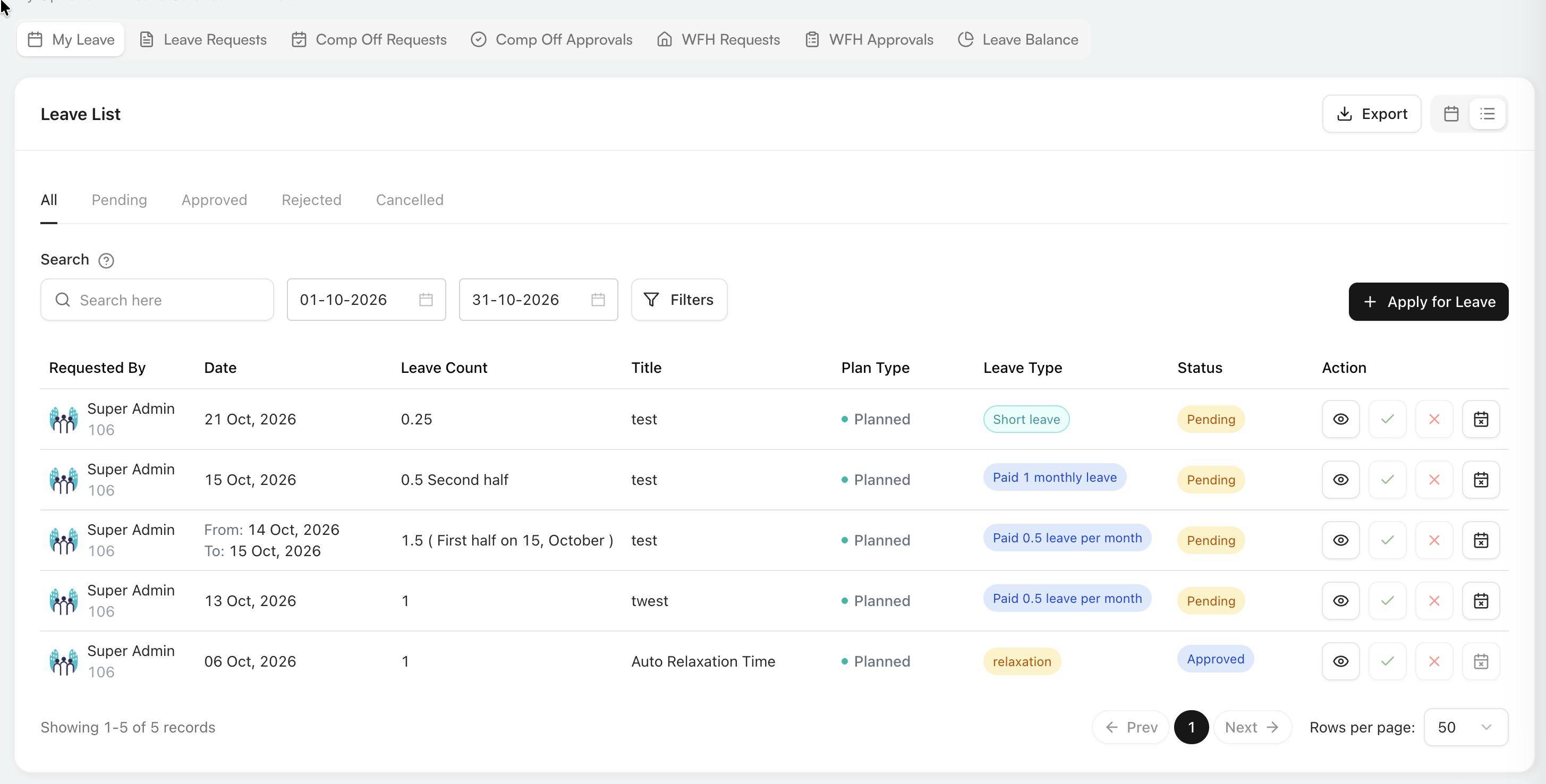
List view
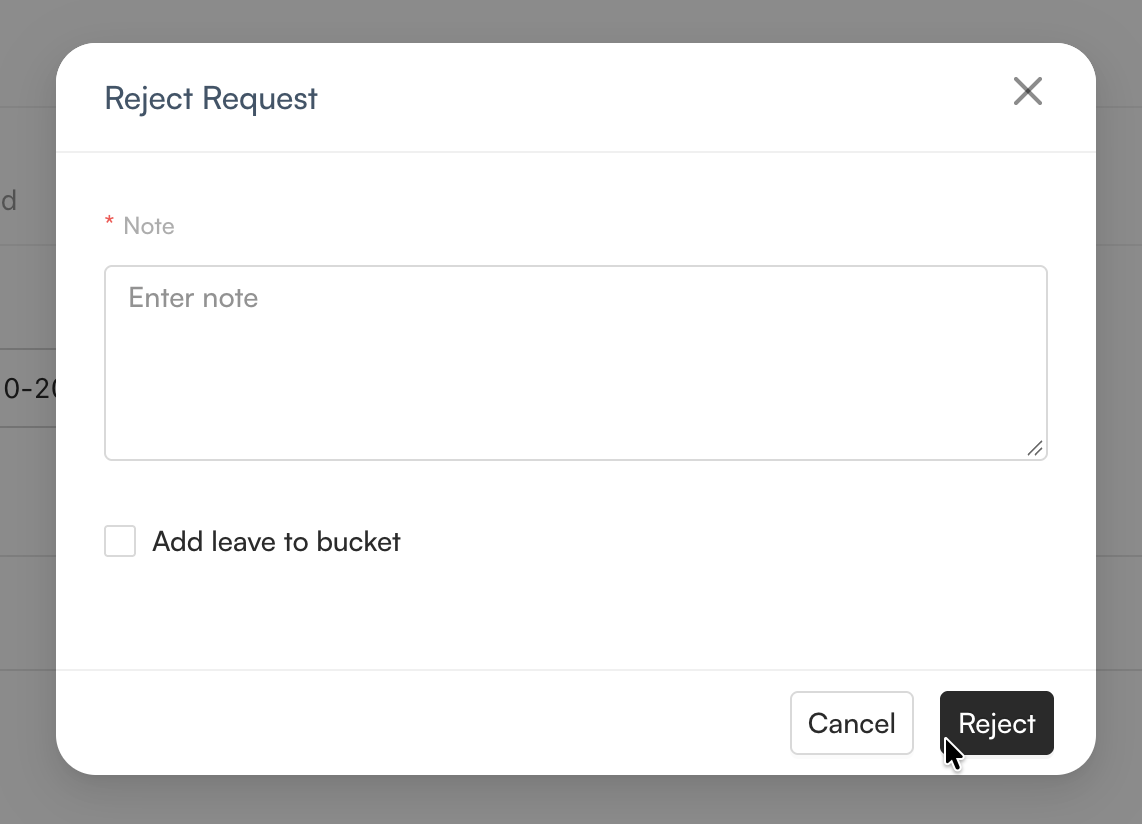
The list view groups requests under All, Pending, Approved, Rejected, and Cancelled. Use the search box, date range, and Filters to narrow the records. The table shows the requester, date, leave count, title, plan type, leave type, status, and available actions.
Select Apply for Leave to create a request. Action buttons vary by the request status and your permissions; they can include viewing details, approving, rejecting, or cancelling a request. Use the controls below the table to move between pages or change the number of rows shown.
Apply for leave
Select Apply for Leave, complete the form, and select Save.
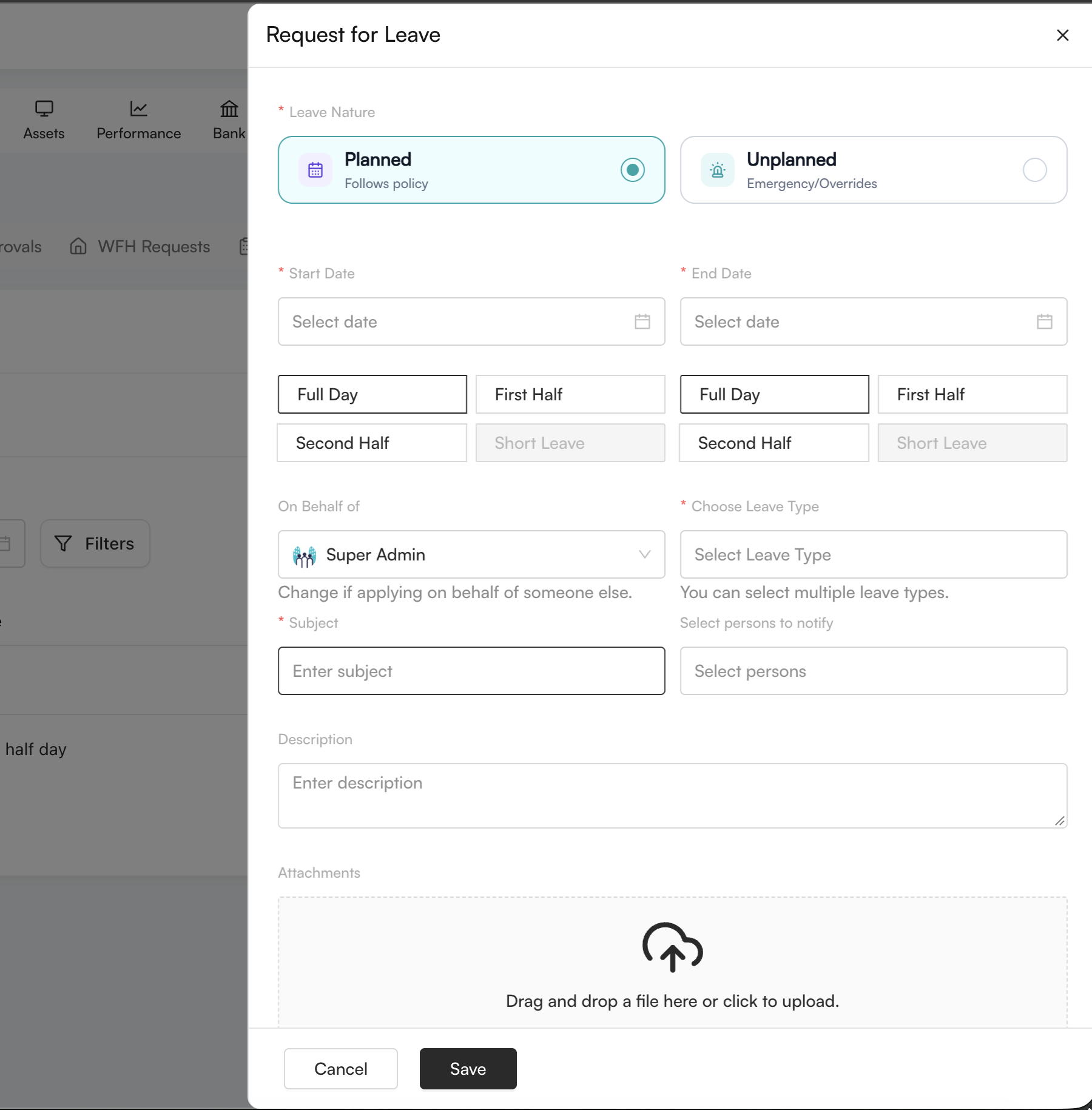
| Field | Description |
|---|---|
| Leave Nature | Select Planned for policy-based leave or Unplanned for emergencies and permitted overrides. |
| Start Date and End Date | Select the period covered by the request. |
| Day portion | Choose Full Day, First Half, Second Half, or Short Leave when that option is available for the selected date and policy. |
| On Behalf of | Keep yourself selected or choose another employee if you are permitted to apply for them. |
| Choose Leave Type | Select one or more eligible leave types. |
| Subject | Enter a concise reason or title for the request. |
| Select persons to notify | Add people who should be notified about the request. |
| Description | Add any supporting explanation. |
| Attachments | Drag and drop a file, or select the upload area to attach supporting evidence. |
Available leave types and day portions are determined by the employee's assigned leave policies and balance.
Leave Requests
Use Leave Requests to review requests from employees in your approval scope. Calendar view provides a month-level overview of holidays and scheduled leave.
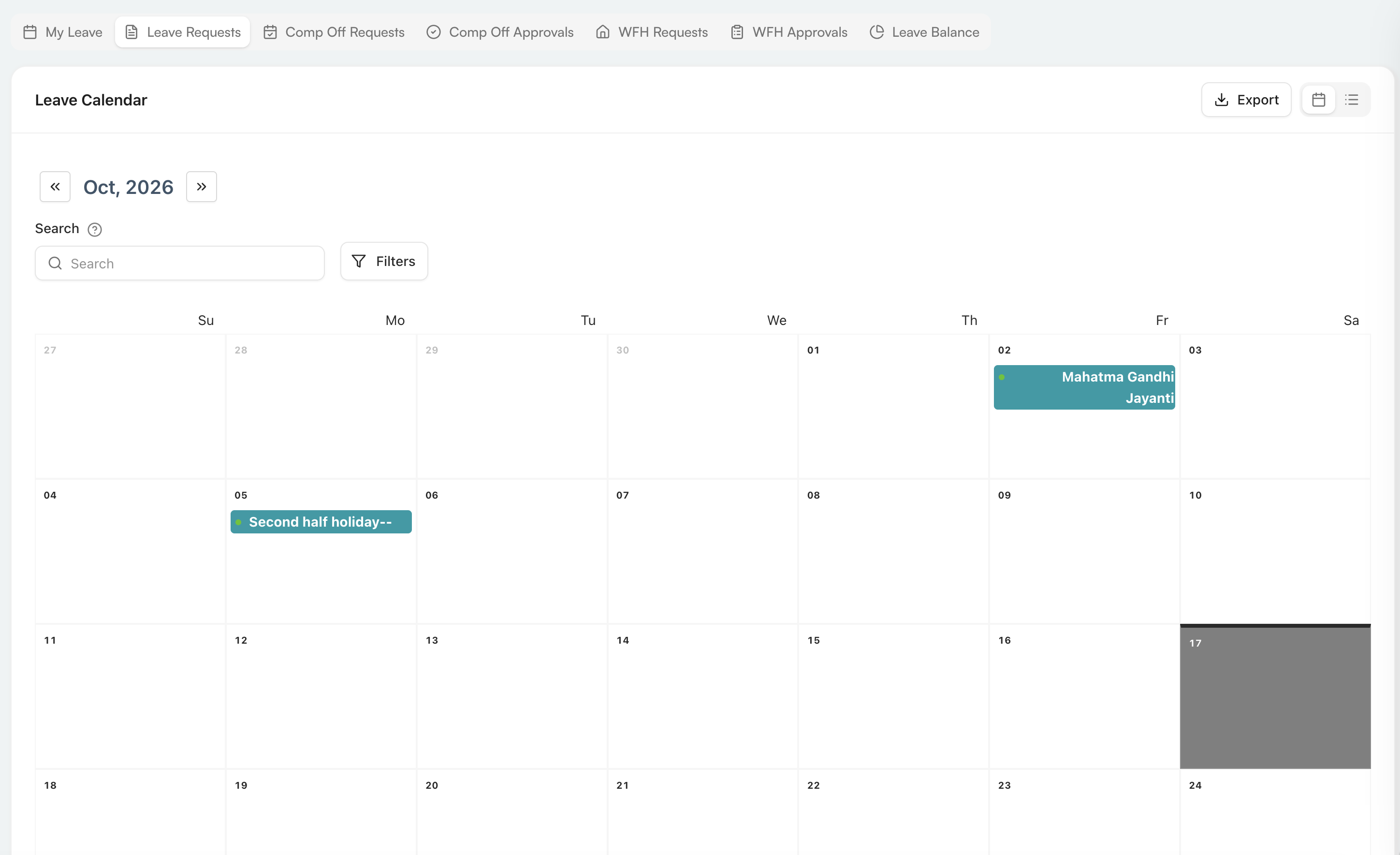
Switch to list view for status tabs, search, date filters, request fields, and row actions. Select the eye icon to inspect a request before taking action.
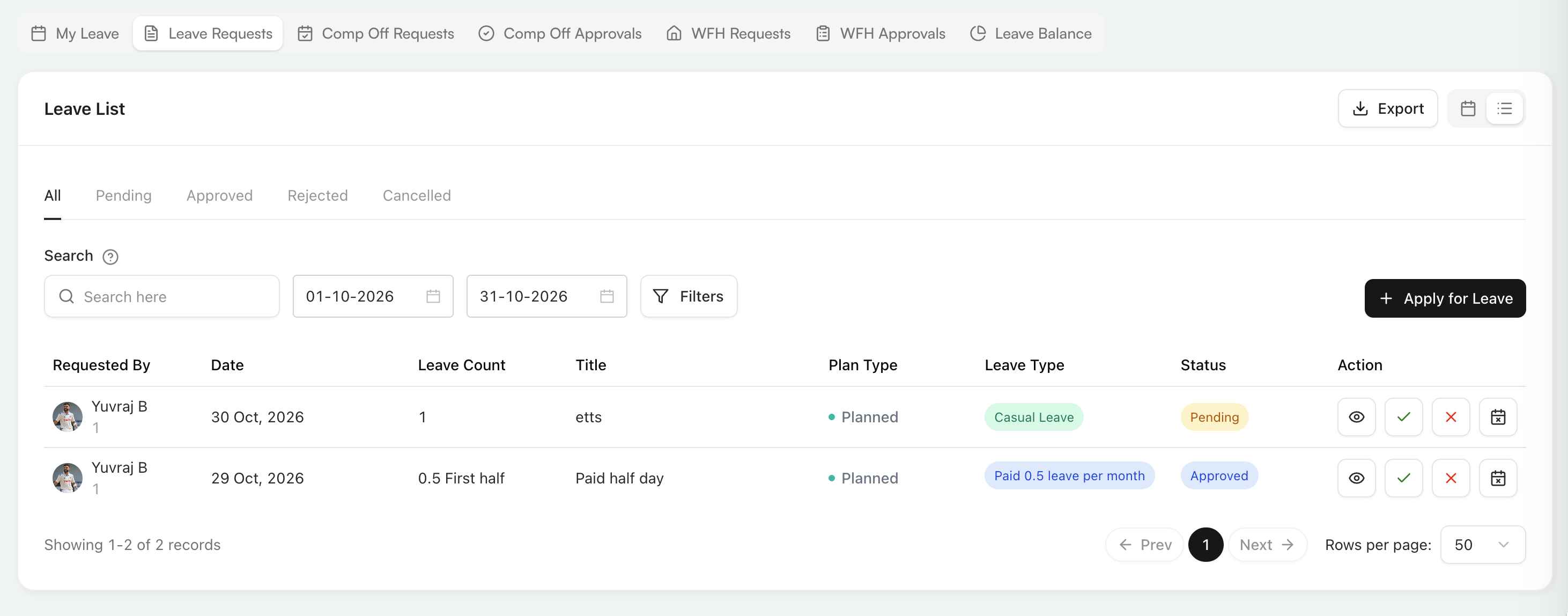
Review leave details
The details window shows:
- the requester and current status;
- start date, end date, and duration;
- leave type, plan type, and notified users;
- the employee's description; and
- when the request was submitted, who approved it, and the recorded decision reason.
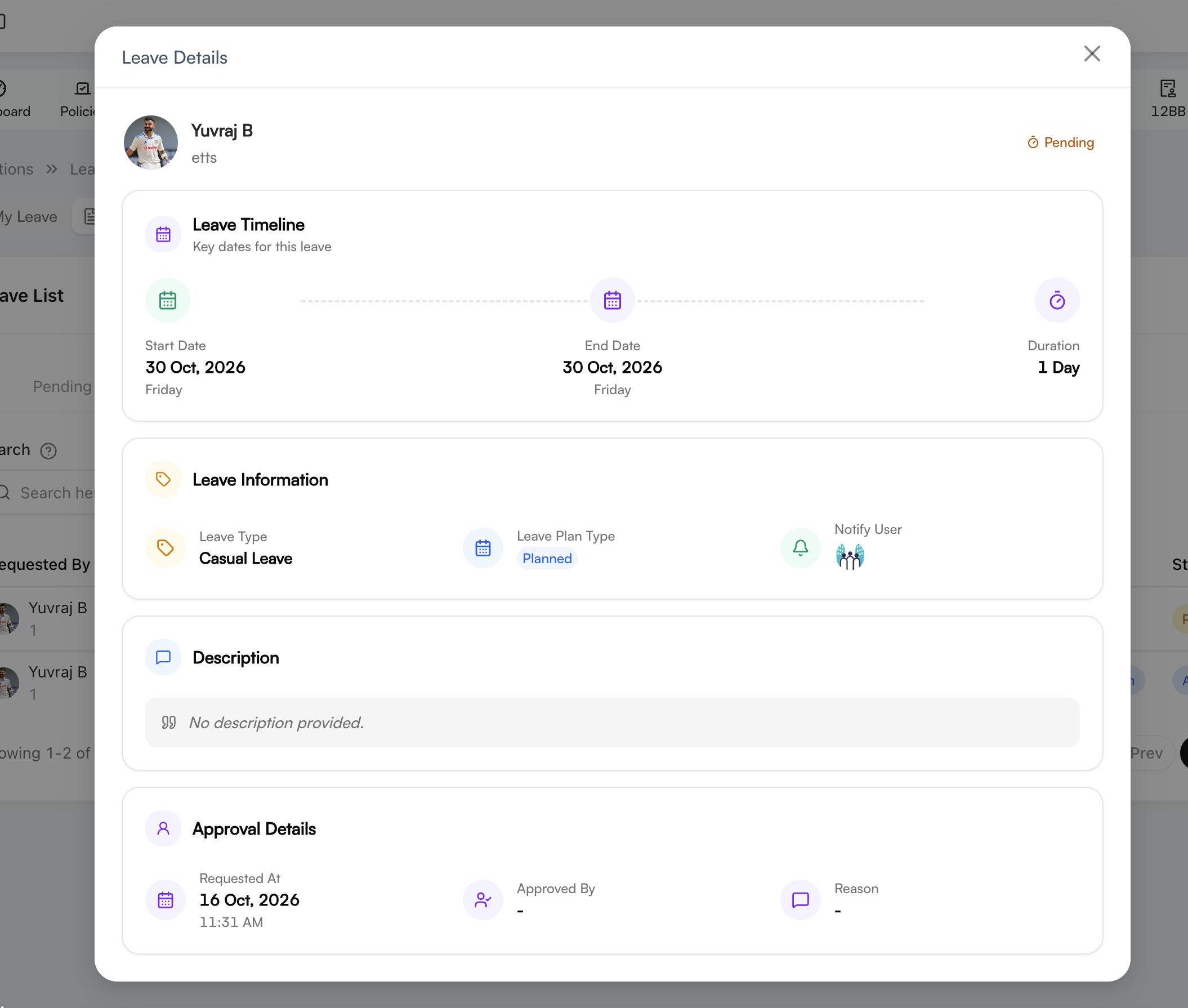
Approve a leave request
Select the approve action, enter the required note, and select Approve. Select Cancel or close the window to leave the request unchanged.
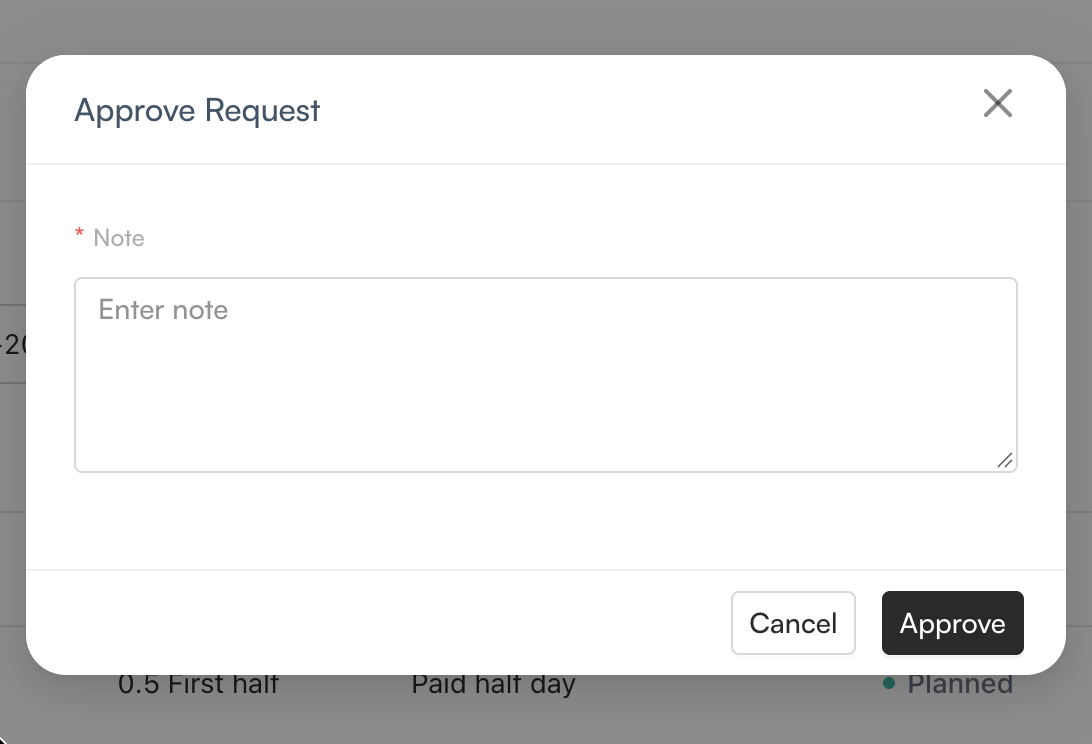
Reject a leave request
Select the reject action, enter the required note, and select Reject. If your organization's workflow requires the eligible leave amount to be restored, select Add leave to bucket before rejecting.
Cancel a leave request
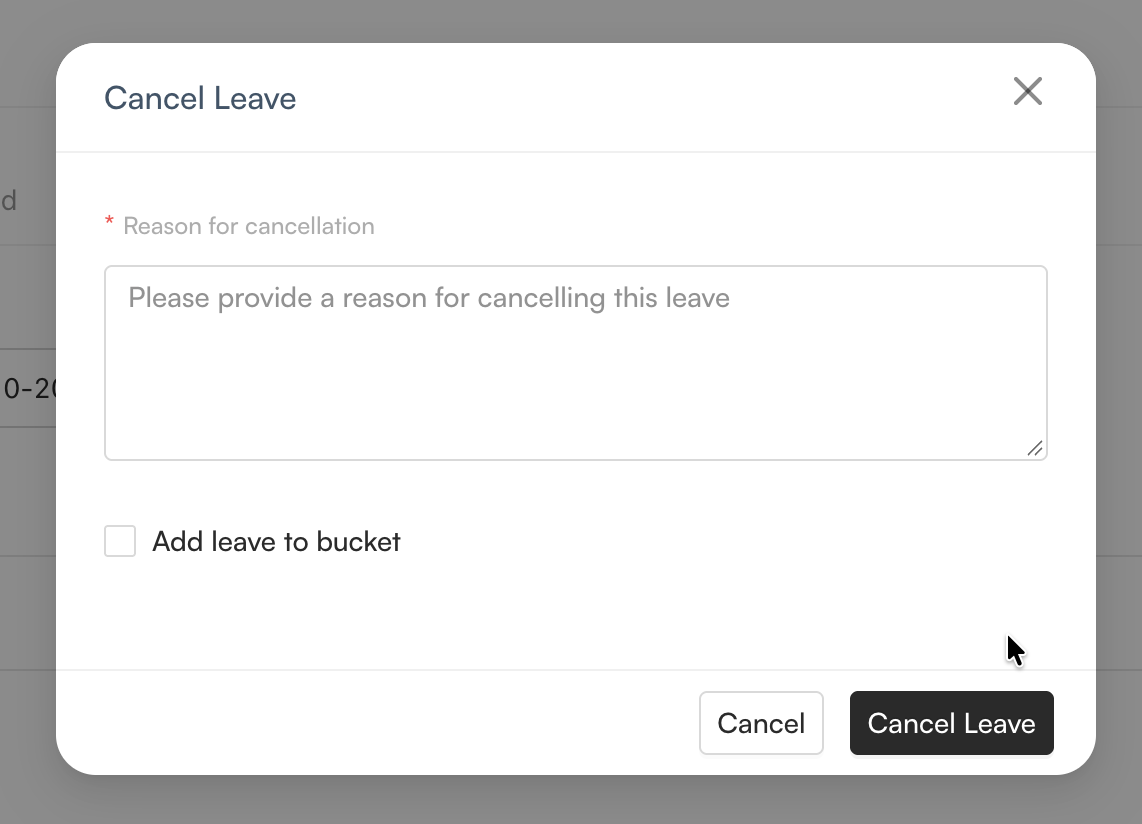
Select the cancel action, enter the required cancellation reason, and select Cancel Leave. Use Add leave to bucket only when the cancelled leave should be returned to the employee's balance under your organization's policy.
Comp Off Requests
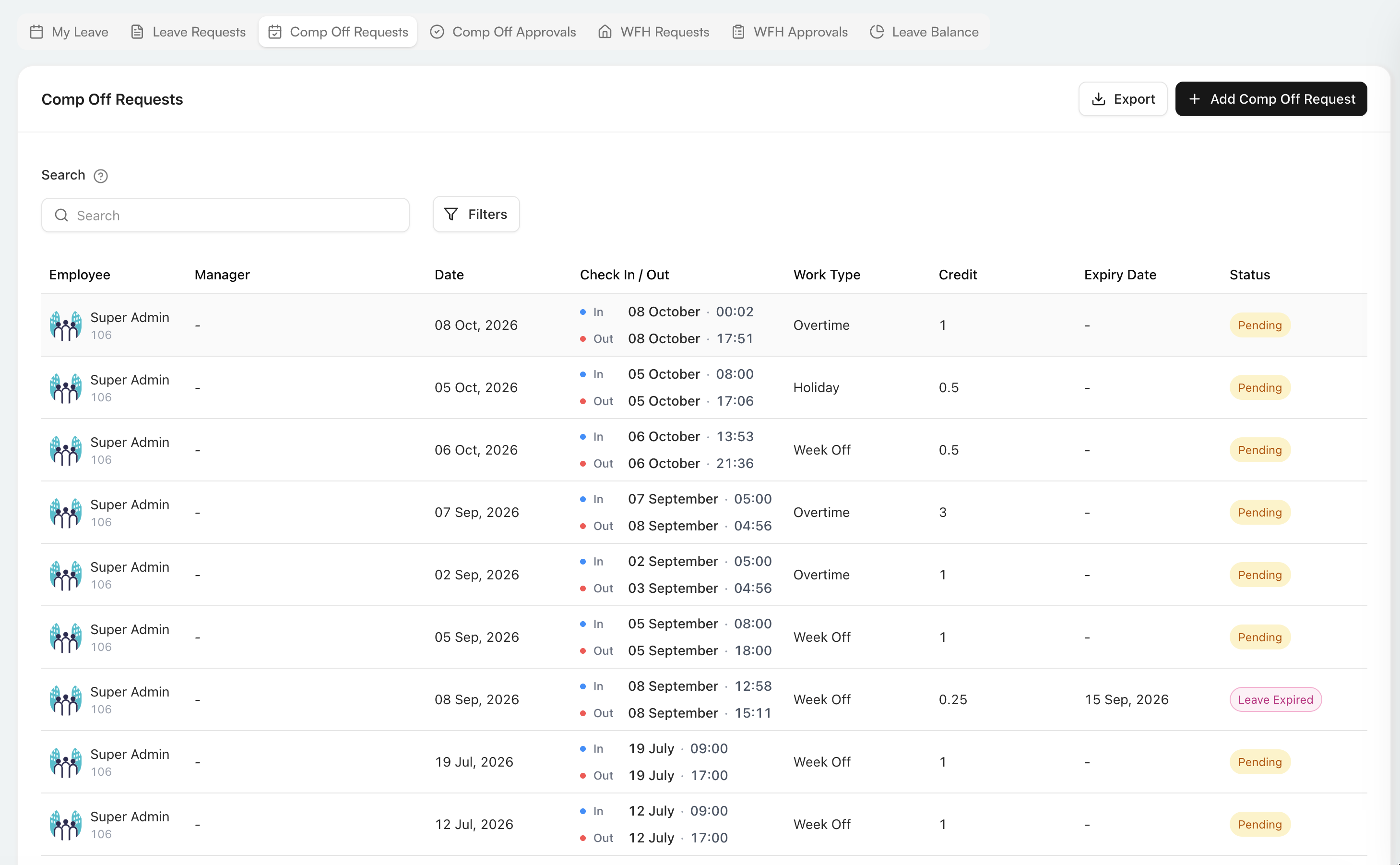
Use Comp Off Requests to submit and track credit requested for eligible work. Search or filter the table, or export the displayed data. Each row shows the employee and manager, work date, check-in and check-out times, work type, requested credit, expiry date, and status. An expired credit is identified by the Leave Expired status.
Add a comp-off request
Select Add Comp Off Request, complete the form, and select Save.
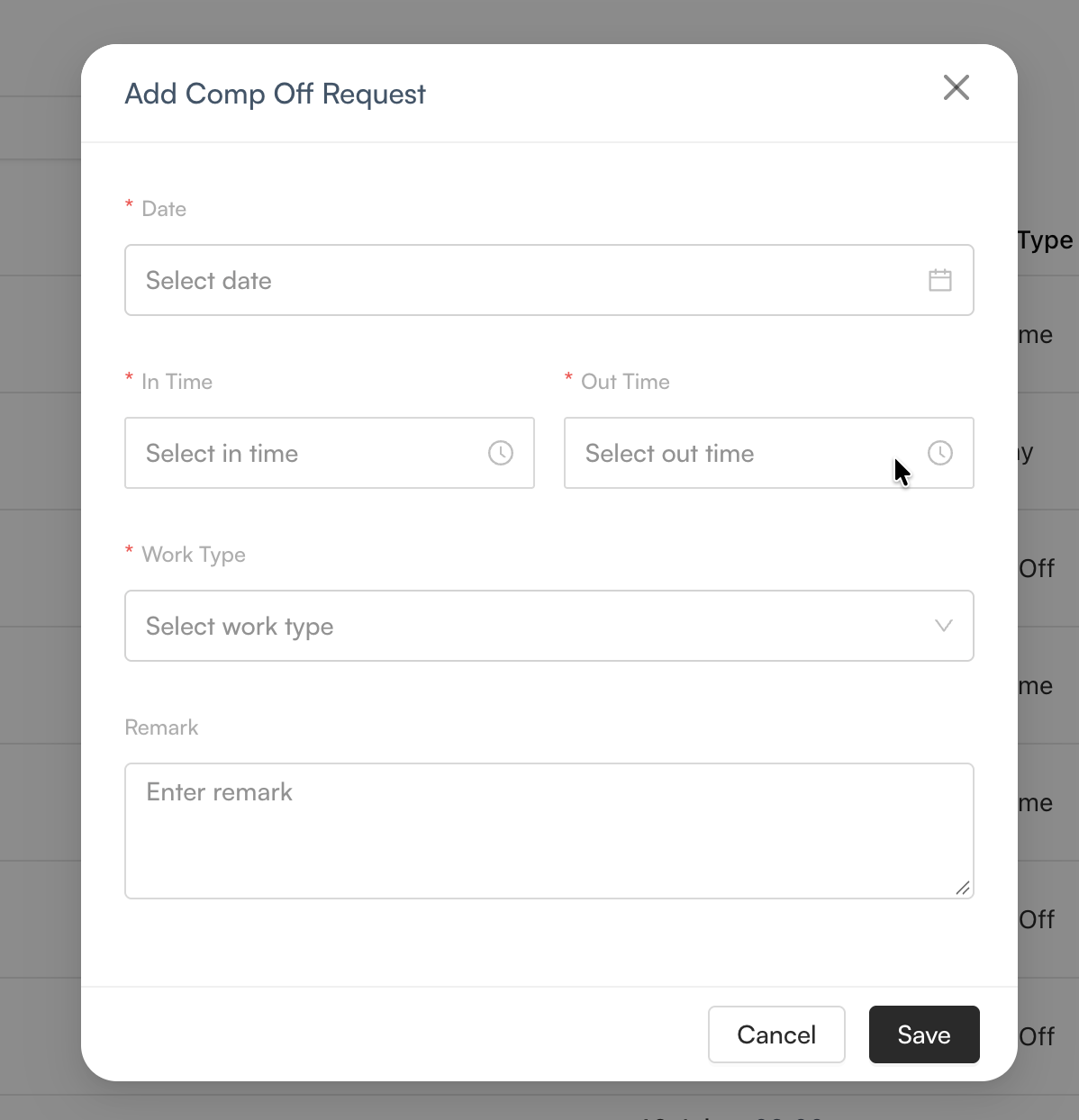
| Field | Description |
|---|---|
| Date | Select the date on which the eligible work was performed. |
| In Time and Out Time | Enter the work period used to calculate the request. |
| Work Type | Select the applicable type, such as overtime, holiday, or week off. |
| Remark | Add optional context for the approver. |
Comp Off Approvals
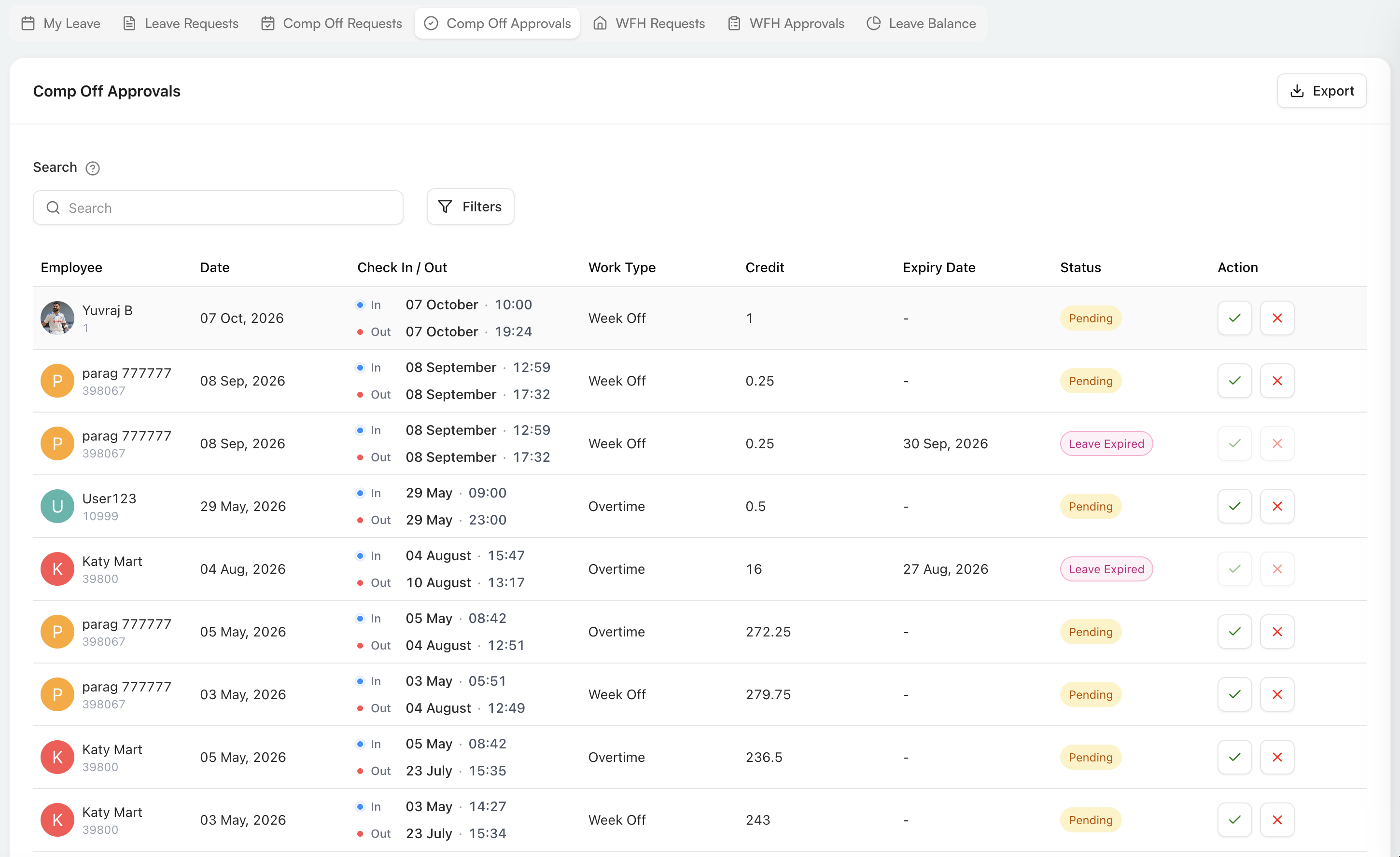
Use Comp Off Approvals to review requests in your approval scope. The table shows the employee, work date, check-in and check-out times, work type, credit, expiry date, and status. Select the checkmark to approve a pending request or the cross to reject it.
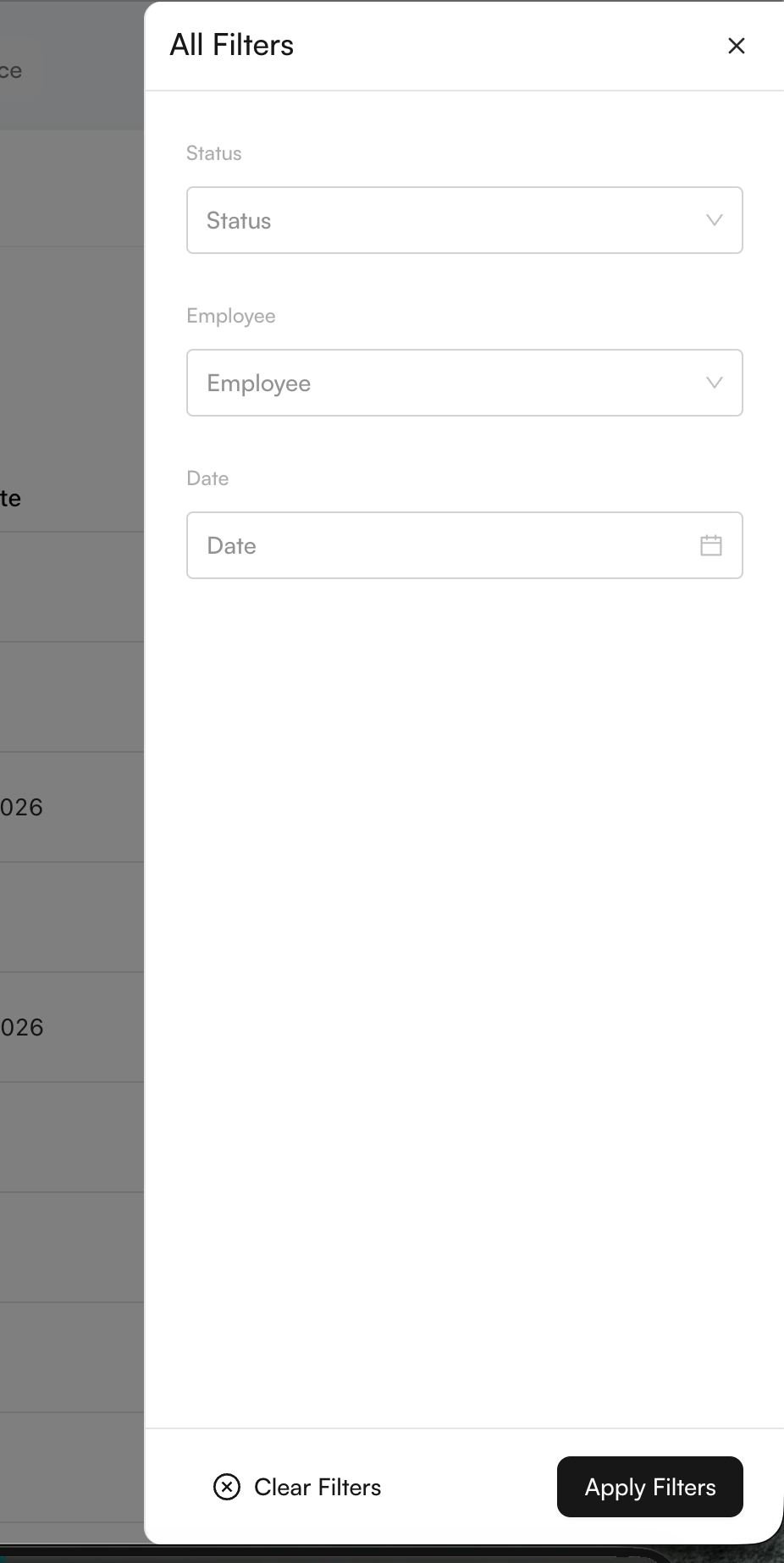
Select Filters to filter requests by status, employee, or date. Select Apply Filters to update the list or Clear Filters to remove the selections.
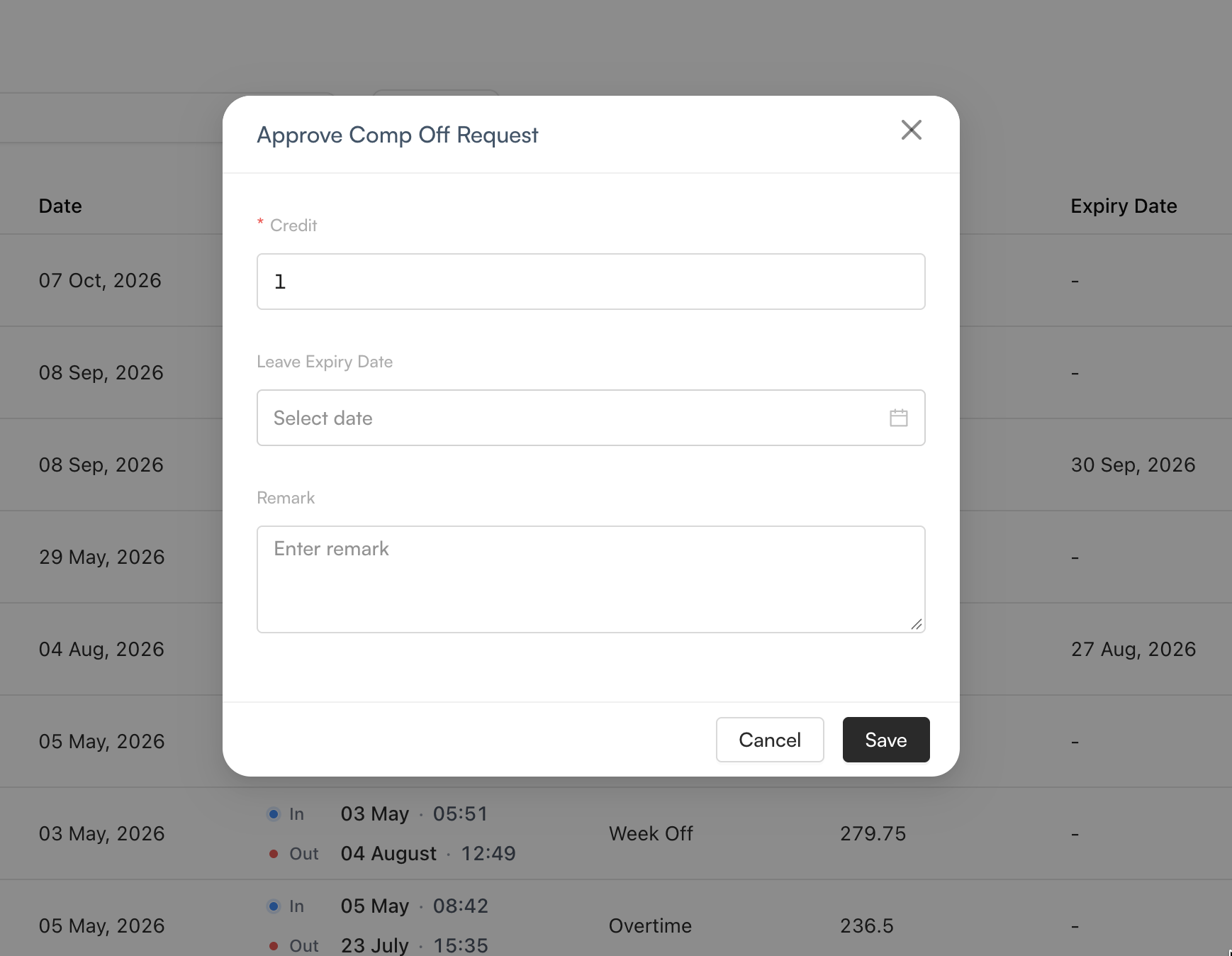
Approve a comp-off request
Confirm or edit the required Credit value. You can also set a leave expiry date and add a remark. Select Save to approve the request with those values.
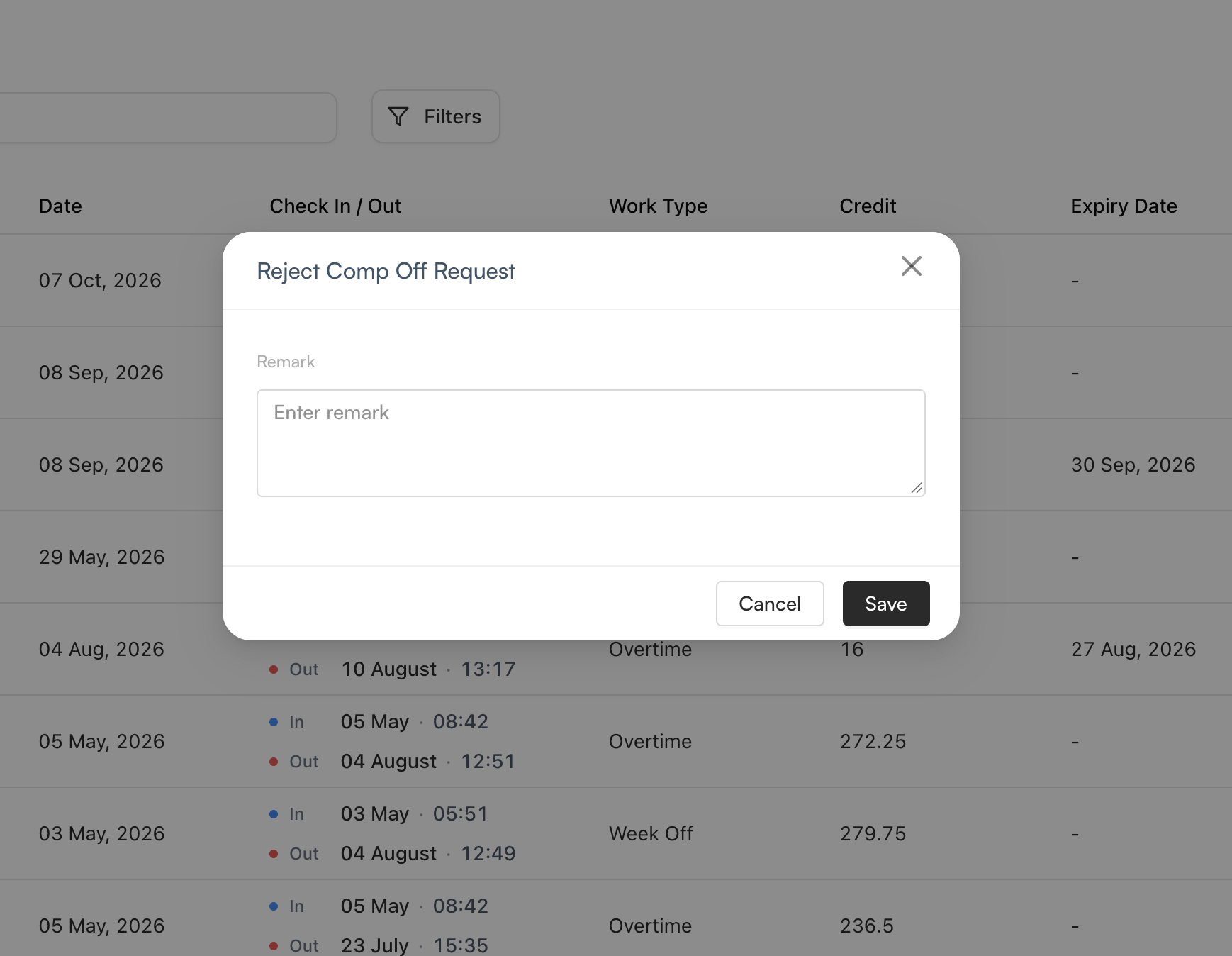
Reject a comp-off request
Add a remark when needed, then select Save to record the rejection. Select Cancel or close the window to leave the request unchanged.
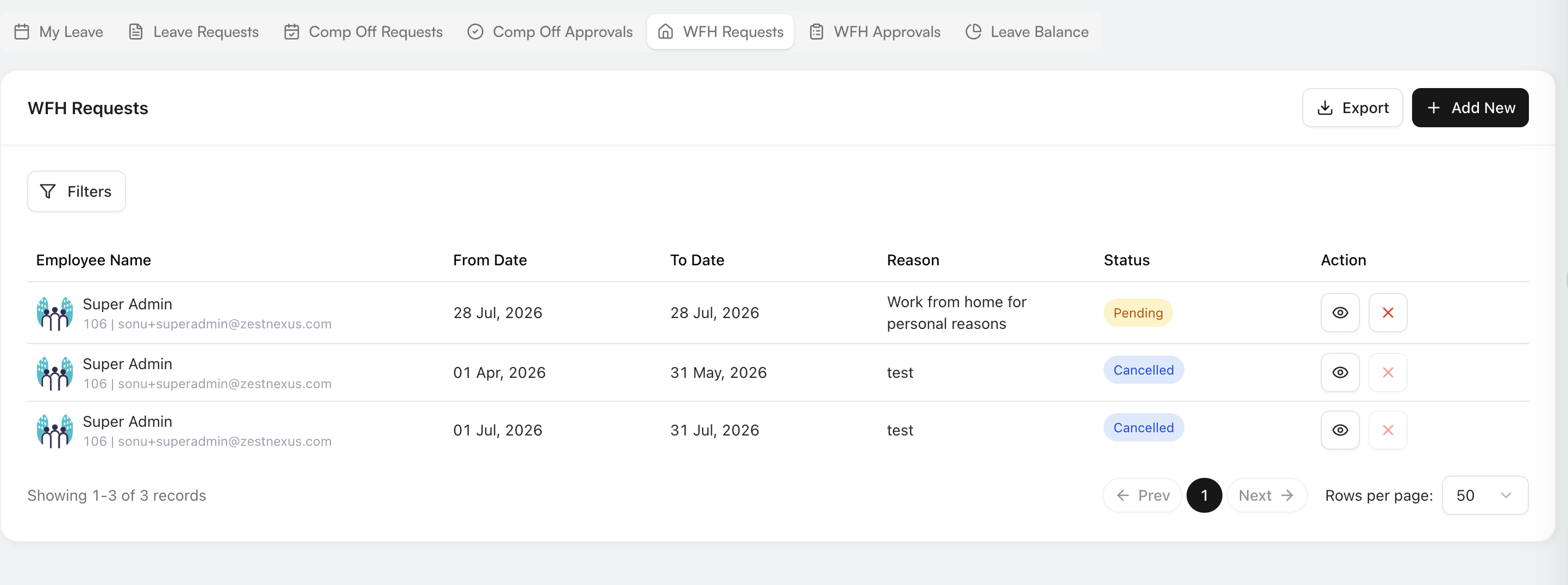
WFH Requests
Use WFH Requests to track your work-from-home requests. The table shows the employee, date range, reason, status, and available actions. Select the eye icon to view a request or the cross to cancel an eligible request. Select Add New to start a request, and use Export to download the displayed records.
Filter WFH requests
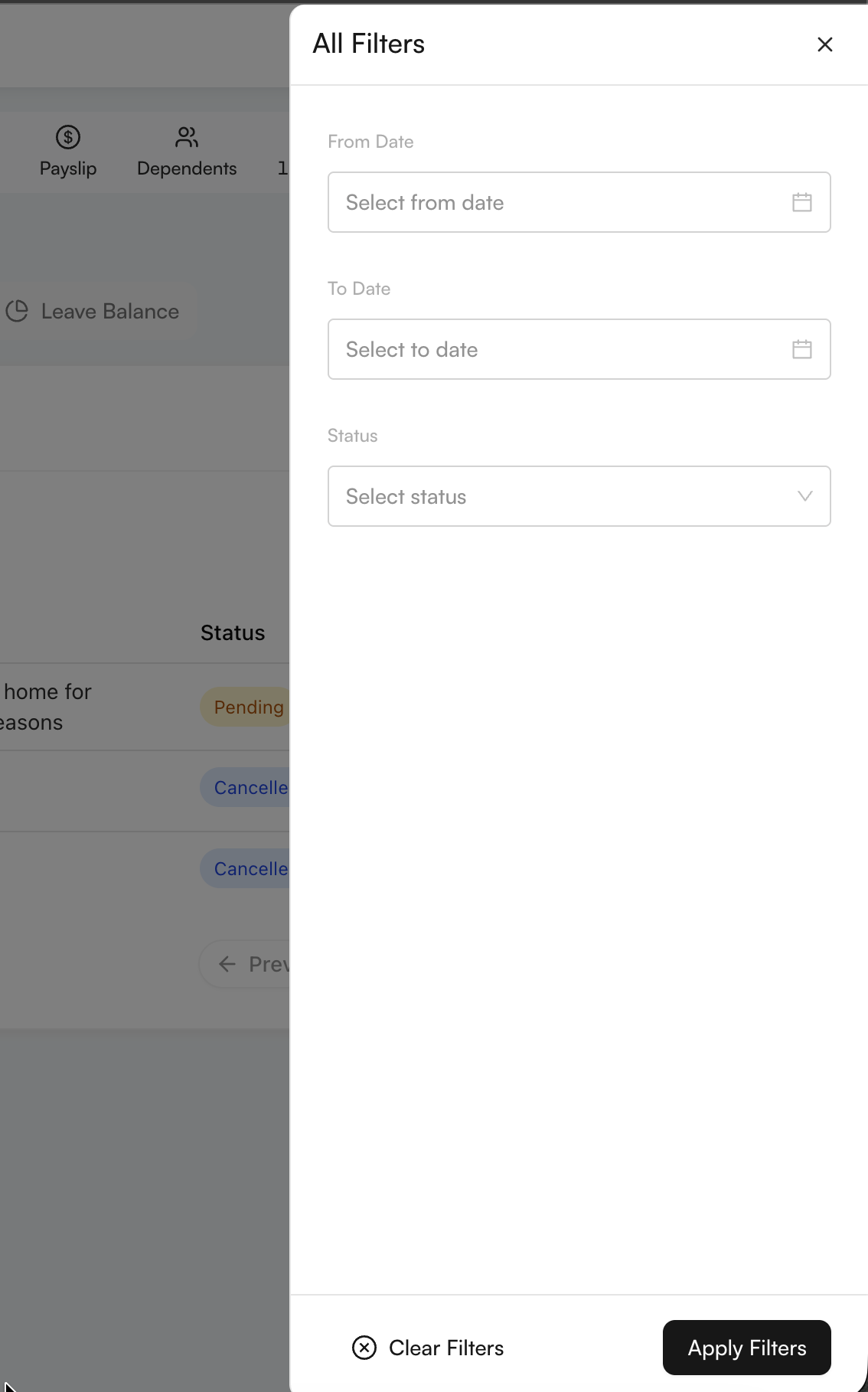
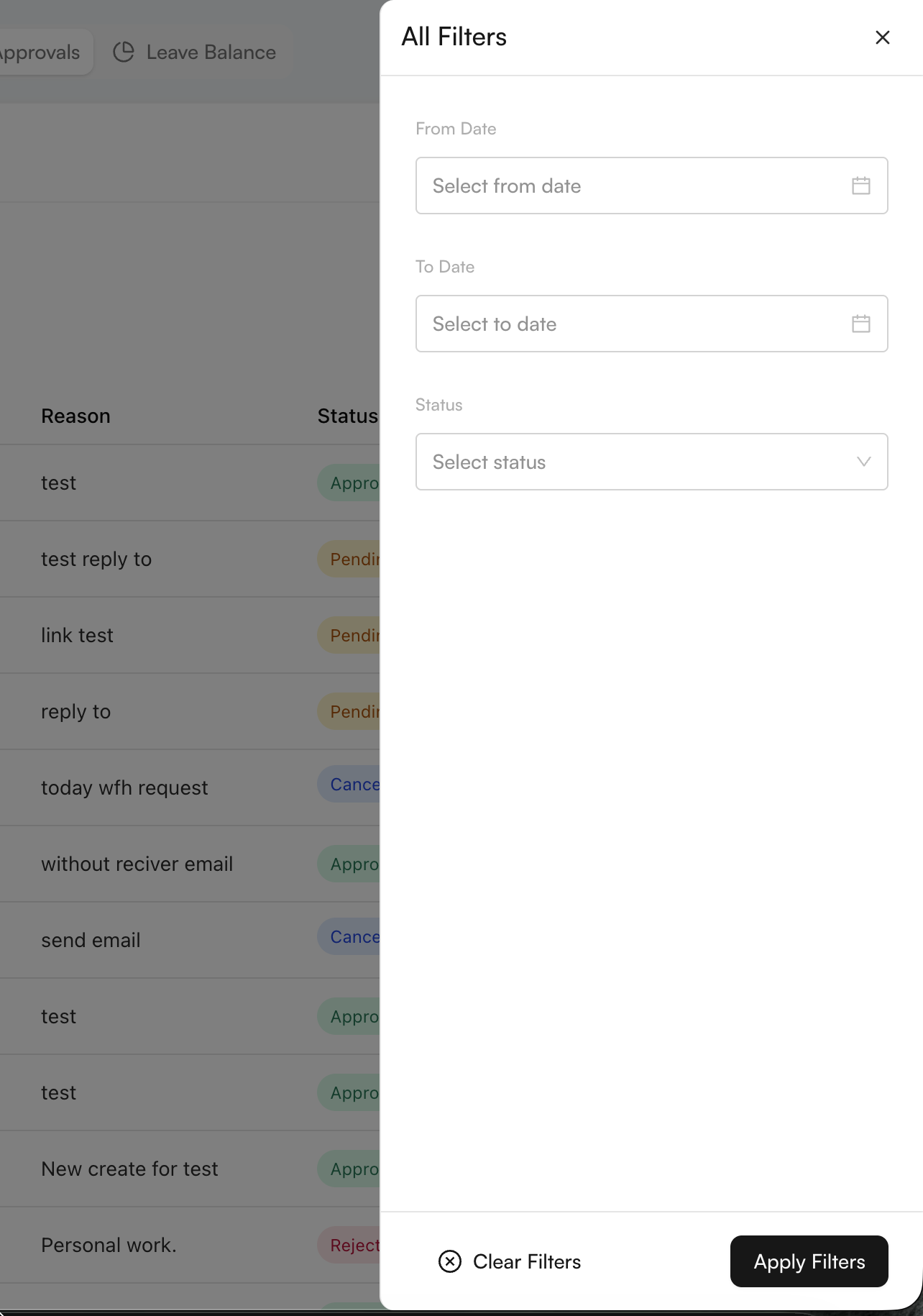
Select Filters to narrow the list by from date, to date, or status. Apply or clear the filters using the controls at the bottom of the drawer.
View request details
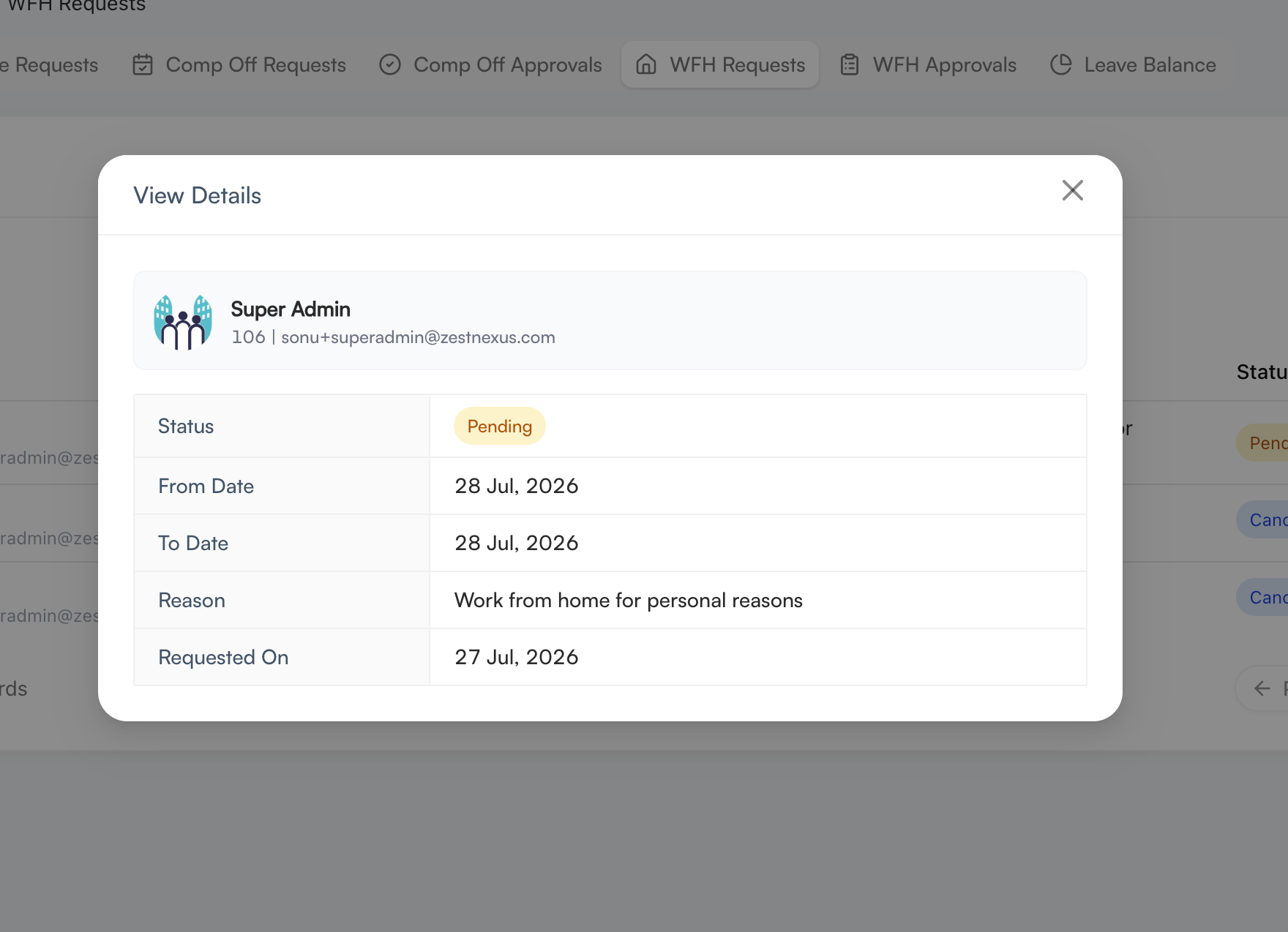
The details window shows the employee, current status, requested date range, reason, and submission date.
Cancel a WFH request
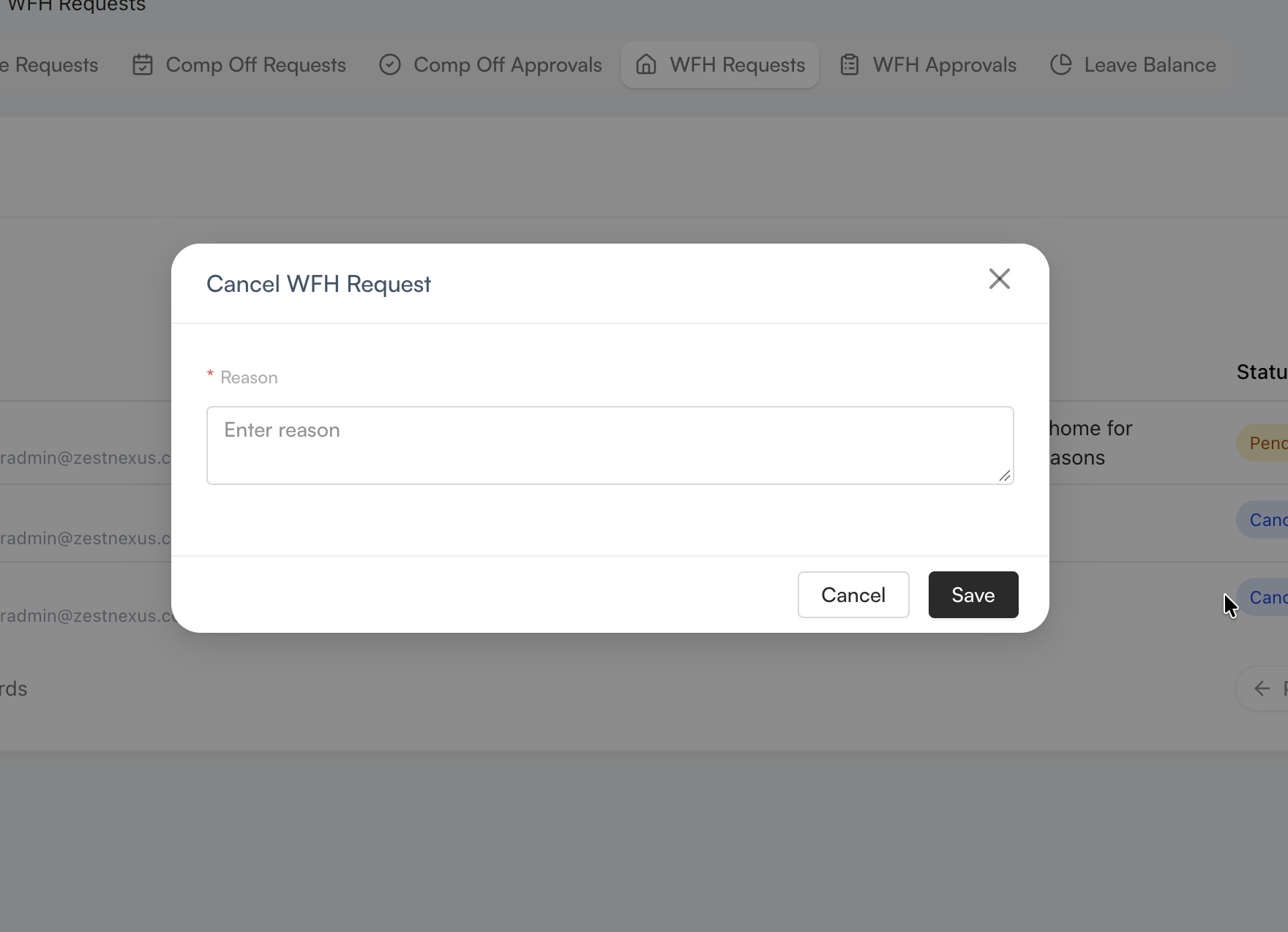
Select the cancel action, enter the required reason, and select Save. The request remains unchanged if you select Cancel or close the window.
WFH Approvals
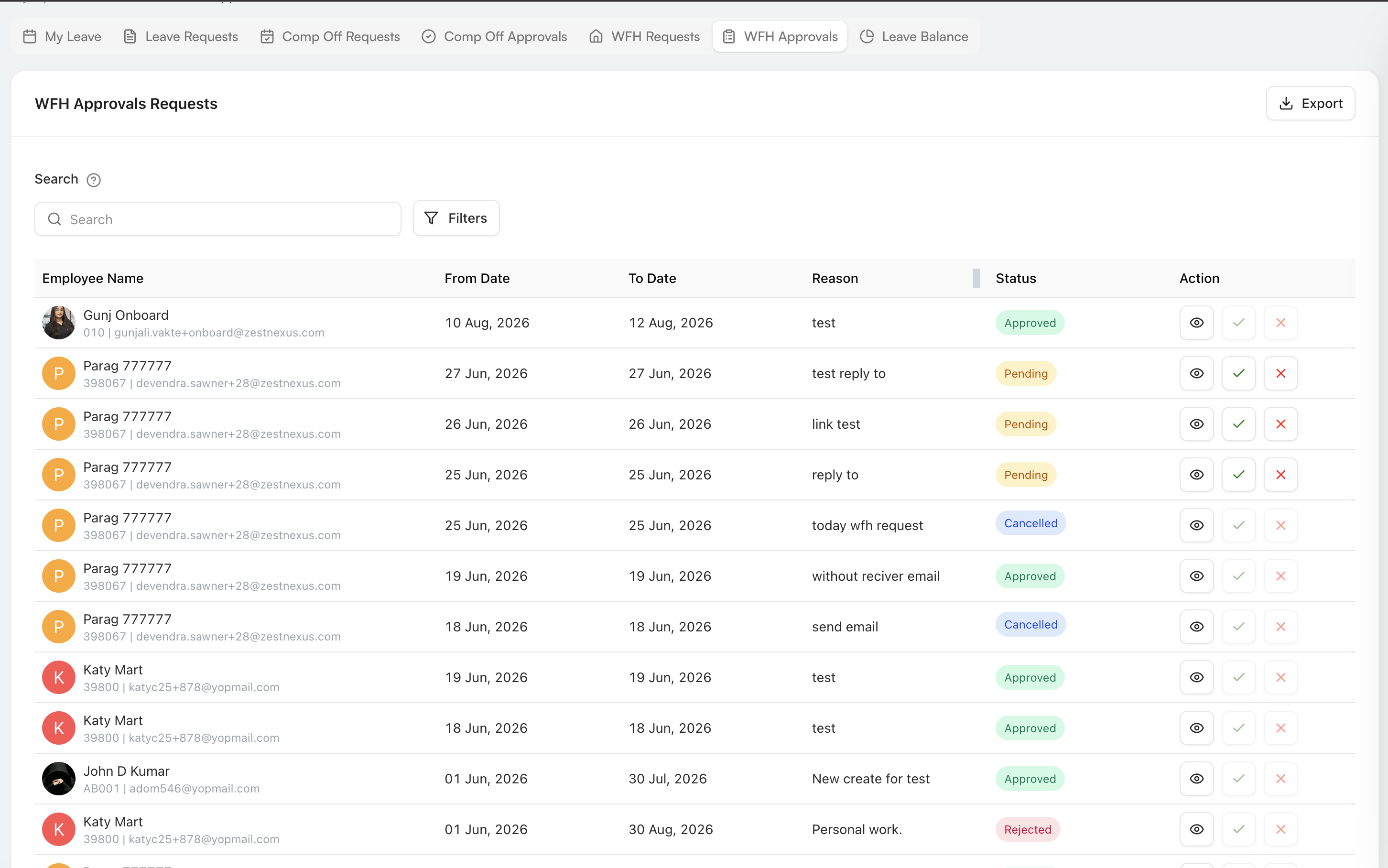
Use WFH Approvals to review requests from employees in your approval scope. Search or filter the list, inspect the employee, date range, reason, and status, then use the row actions to view, approve, or reject a request. Actions that do not apply to the current status are disabled.
The approval filters use the same from date, to date, and status fields as the WFH Requests view.
Approve a WFH request
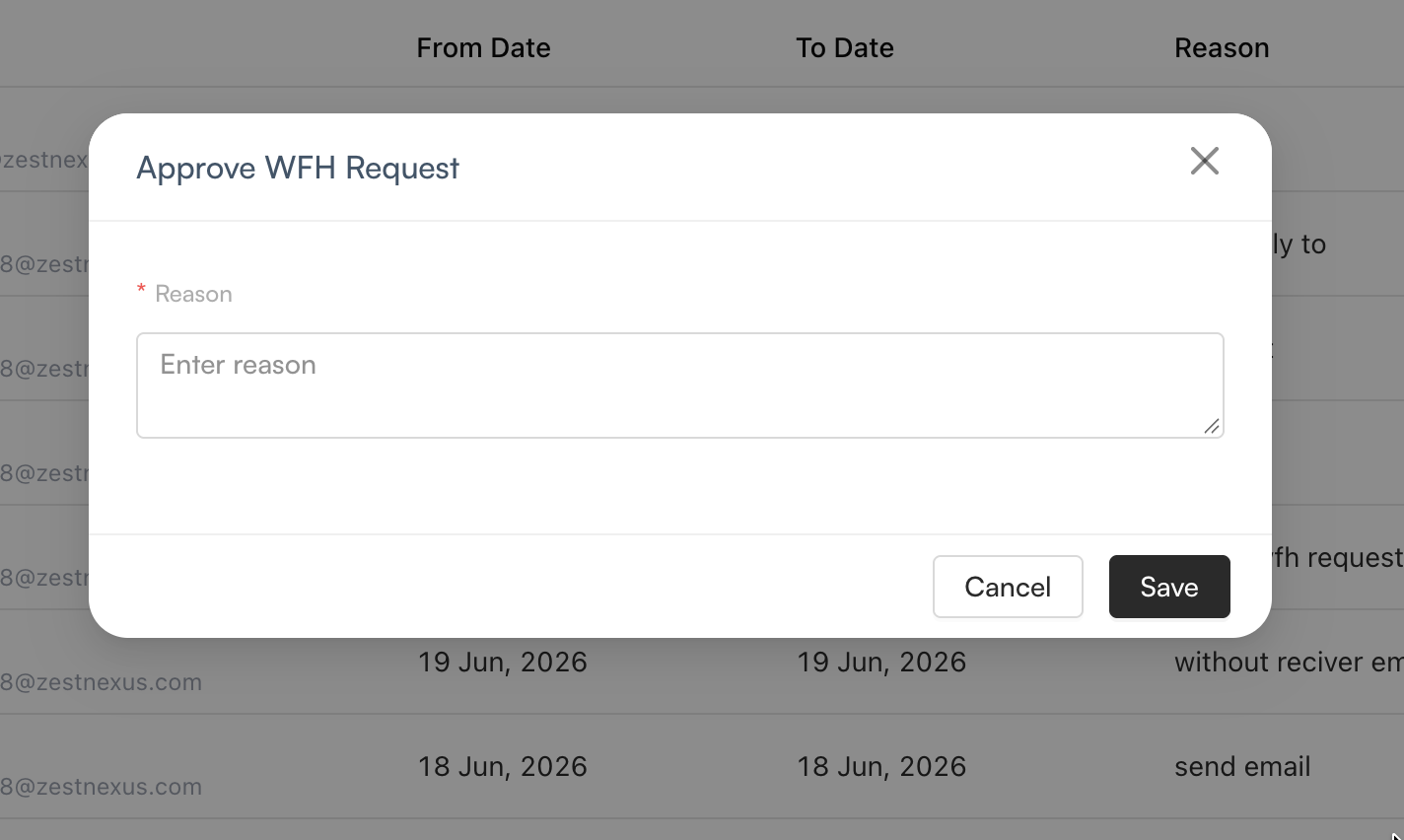
Select the approve action, enter the required reason, and select Save.
Reject a WFH request
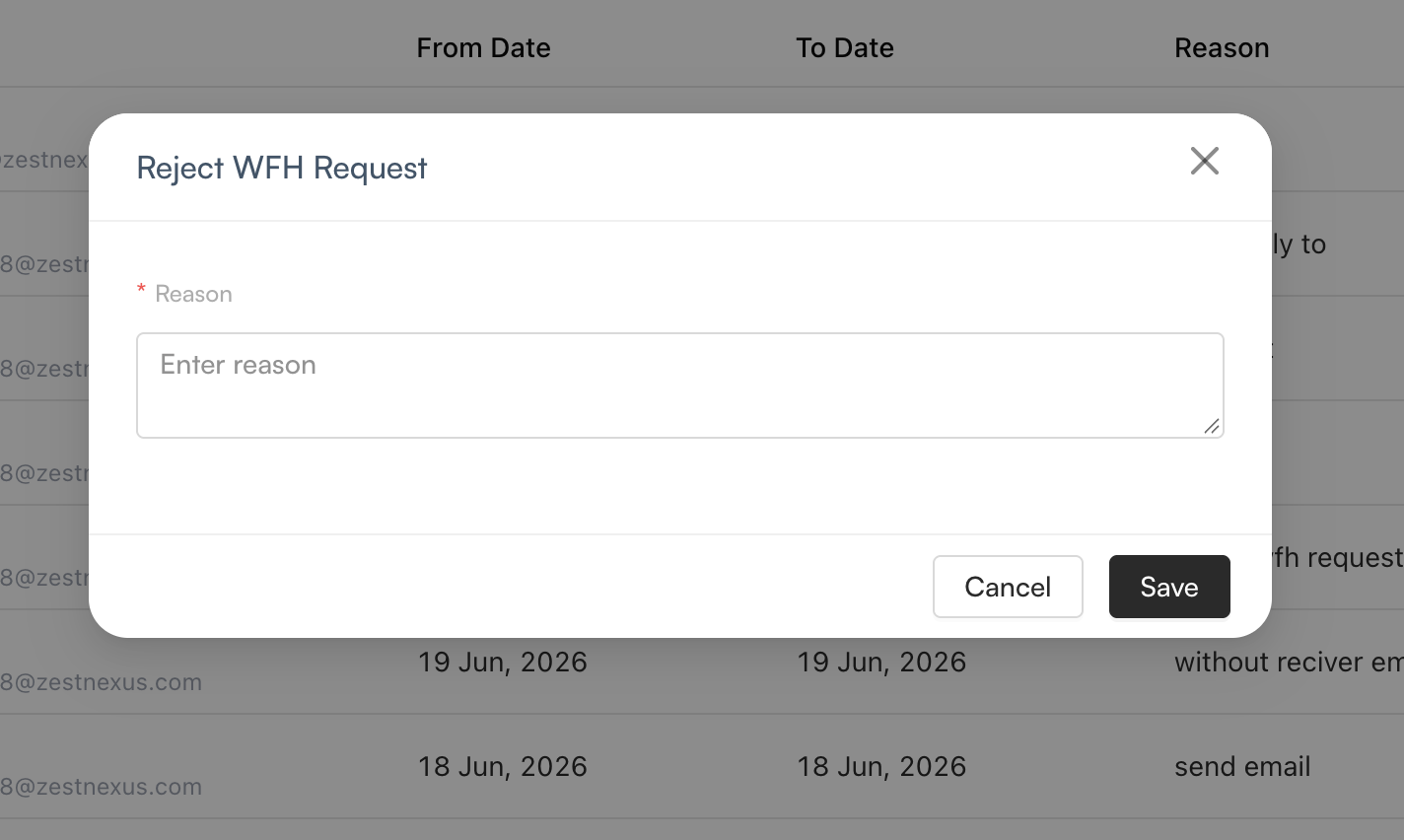
Select the reject action, enter the required reason, and select Save.
Leave Balance
Use Leave Balance to review the employee's total available leave and the balance for each leave type. Each card shows used days against the allocated total, the number of days still available, and a progress bar for quick comparison.
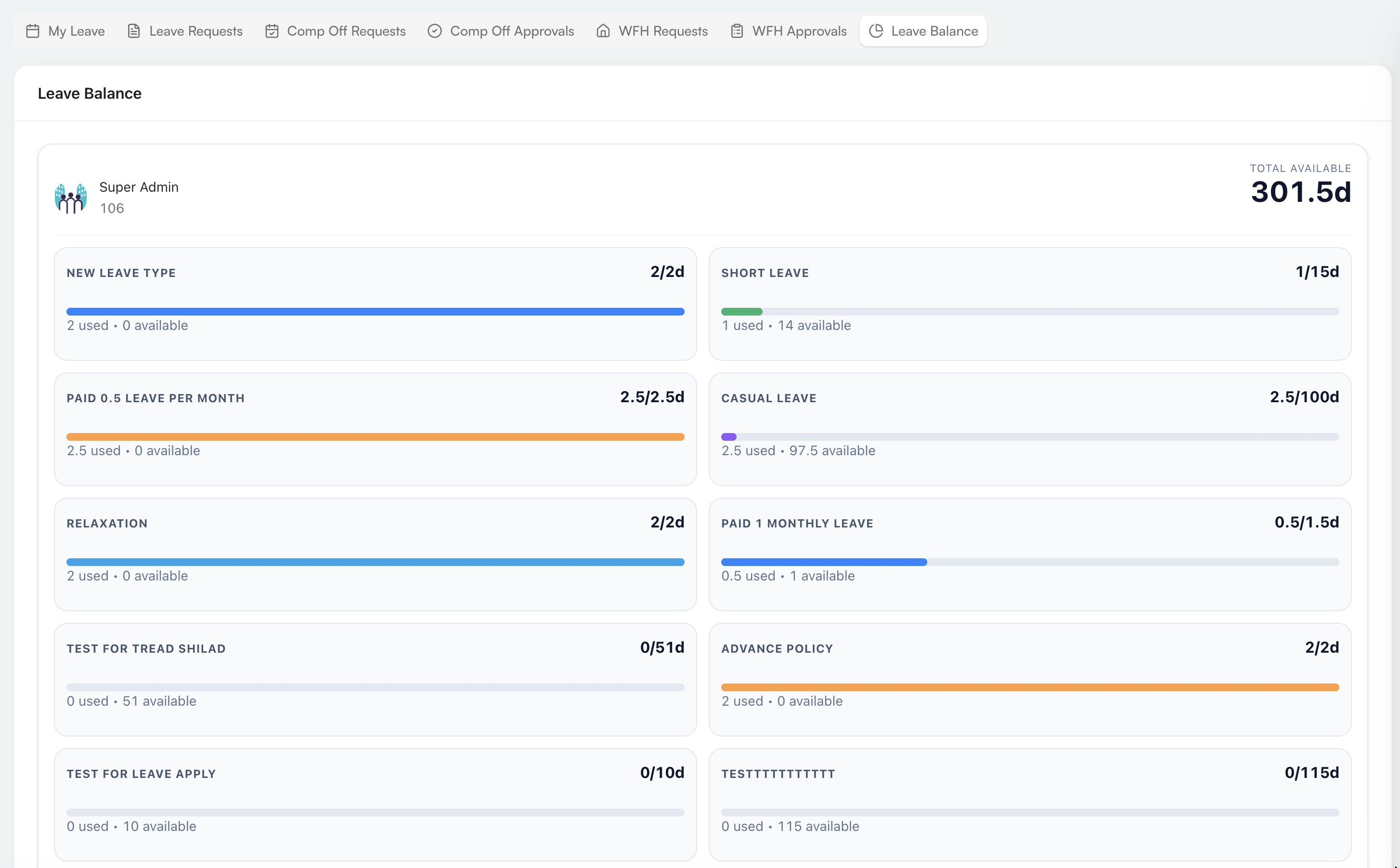
Balances reflect assigned leave policies and recorded activity, including accruals, approved requests, cancellations, and administrative adjustments. If a displayed balance looks incorrect, check the employee's assigned policies and request history before submitting a new request.