Leads
Review the sales leads assigned to you.
Use Leads for your personal list of assigned leads.
Assigned Leads
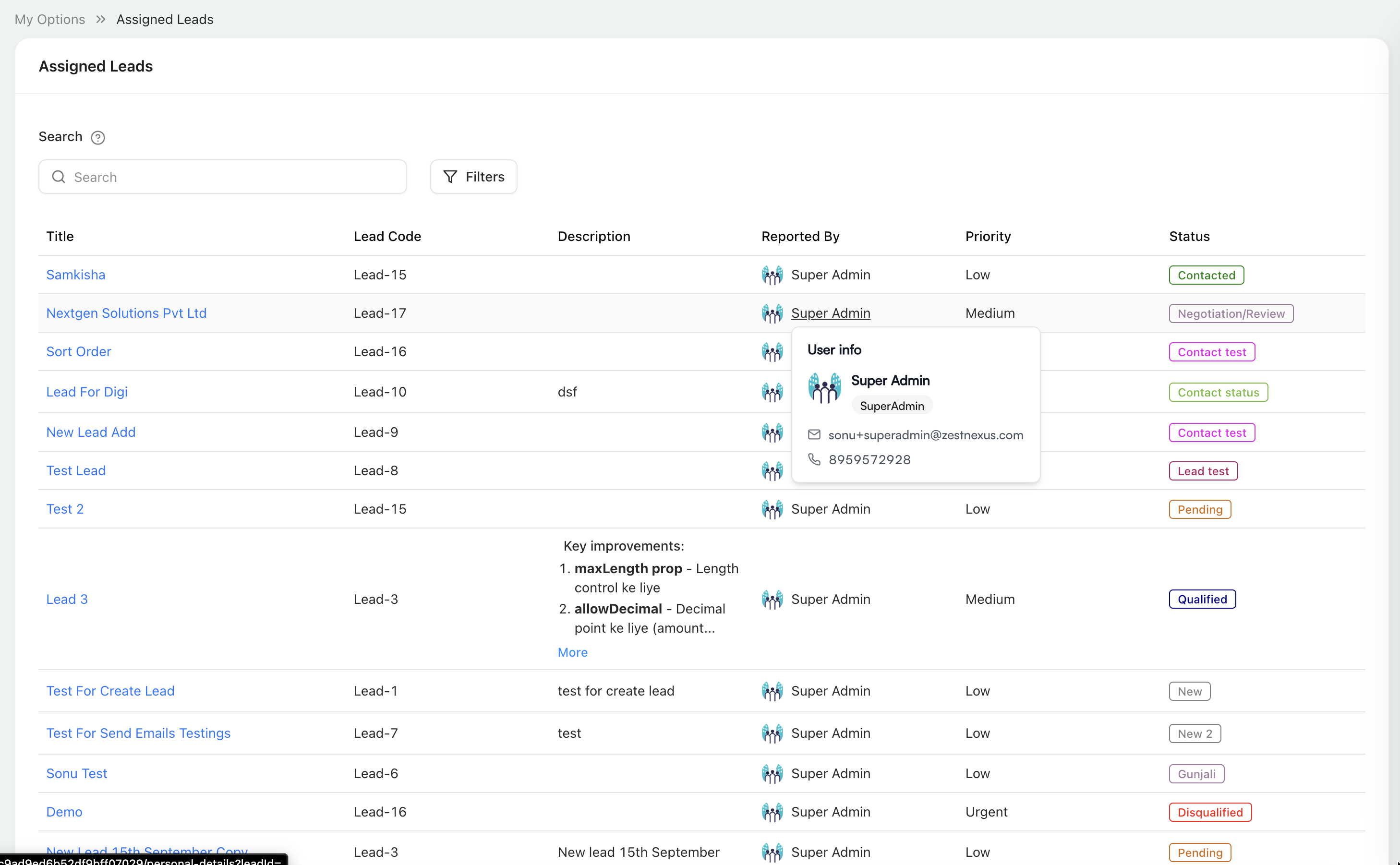
The list shows leads connected to you through assignment. Use the search box to find a lead or select Filters to narrow the displayed records.
Each row can show:
- lead title and code;
- description;
- the person who reported the lead;
- priority; and
- current status.
Select a lead title to open its details. When available, hover over a reporter to review their profile summary and contact information.
Lead details
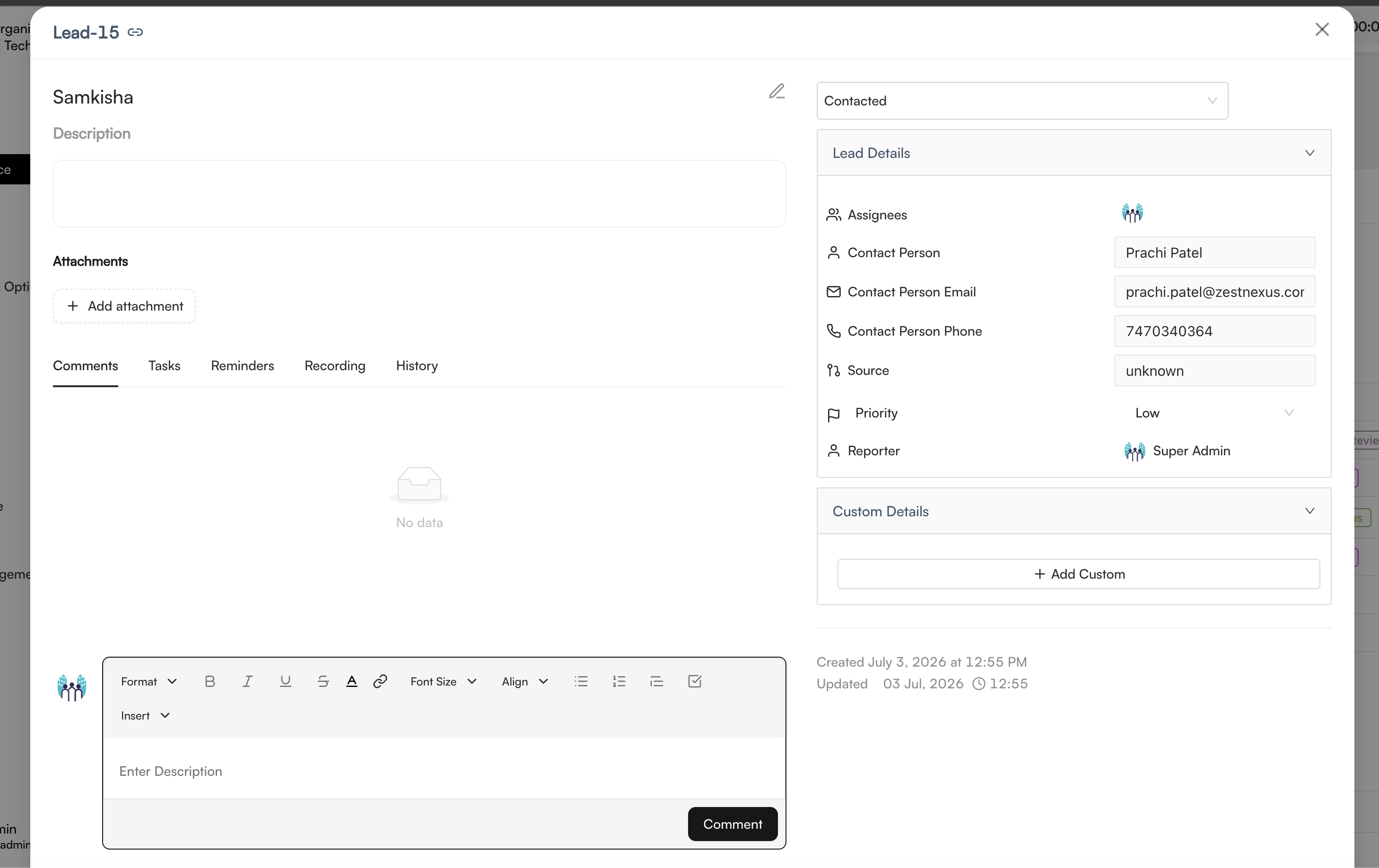
The lead details window contains the lead code, title, description, attachments, current status, and activity areas. Use the edit control beside the title to update supported information, or select the status field to move the lead to another available stage when permitted.
Lead information
The Lead Details panel can show:
| Field | Description |
|---|---|
| Assignees | People responsible for the lead. |
| Contact Person | Primary contact associated with the lead. |
| Contact Person Email | Email address for the primary contact. |
| Contact Person Phone | Phone number for the primary contact. |
| Source | Where the lead originated. |
| Priority | The lead's current priority. |
| Reporter | Person who reported or created the lead. |
Expand Custom Details to review organization-specific information or select Add Custom when you are permitted to add it. Created and updated timestamps appear below the details panels.
Lead activity
Use the tabs beneath the description to manage the lead's activity:
- Comments — add formatted notes and review the discussion.
- Tasks — review work connected to the lead.
- Reminders — review follow-up reminders.
- Recording — access recordings associated with the lead.
- History — review recorded changes and activity.
Use Add attachment to upload supporting files. The available fields and editing actions depend on your permissions.