Dashboard
Use your personal dashboard to review work, attendance, leave, approvals, events, and common employee requests.
The Dashboard is the personal home page for an employee. It summarizes information involving you and provides shortcuts for everyday employee self-service actions. It does not require a separate module permission.
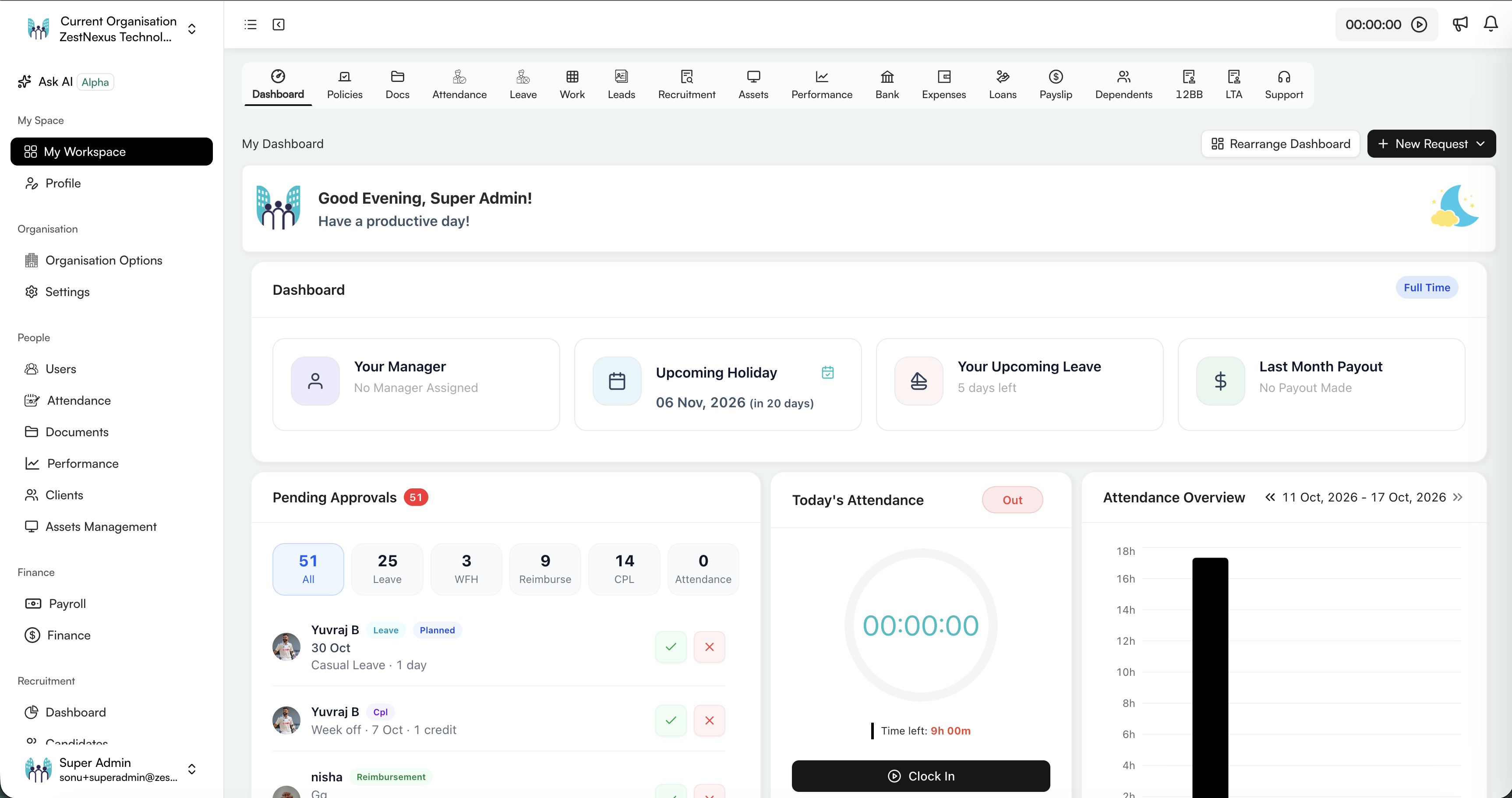
Personalize the dashboard
Select Rearrange Dashboard to change the dashboard layout. All functional widgets can be moved and resized so you can give frequently used information more space. The Good Evening, Your Name! greeting widget is fixed and cannot be moved or resized.
The dashboard remembers the layout made available to your account. The information inside a widget still depends on your employee data, team involvement, and the organization features in use.
Create a new request
Select New Request at the top-right of the page to start a common self-service workflow without leaving the dashboard.
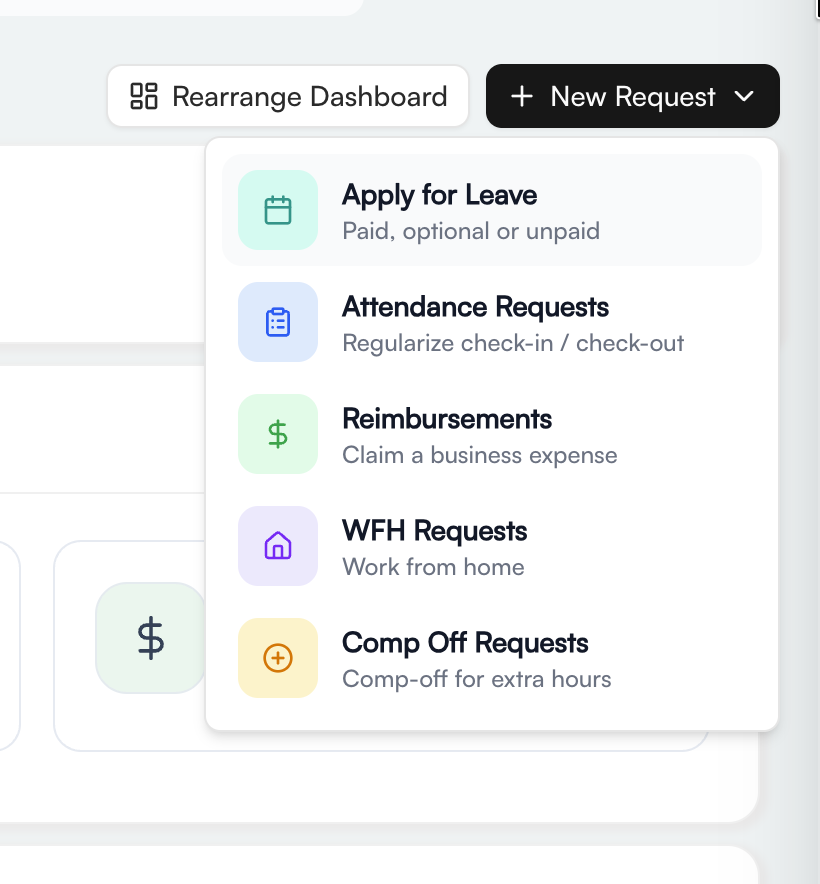
| Request | Use it for |
|---|---|
| Apply for Leave | Request paid, optional, or unpaid leave available under your assigned leave policies. |
| Attendance Requests | Request regularization of a check-in, check-out, or attendance record. |
| Reimbursements | Claim an eligible business expense and provide the required receipt or evidence. |
| WFH Requests | Request permission to work from home. |
| Comp Off Requests | Request compensatory time off for eligible extra work. |
Complete the form opened by the selected request and submit it to the configured approval workflow.
Dashboard summary
The Dashboard summary widget contains four quick-reference cards.
| Card | What it shows |
|---|---|
| Your Manager | Your assigned reporting manager. If no manager is assigned, the card indicates that. |
| Upcoming Holiday | The next organization holiday, its date, and the number of days remaining. |
| Your Upcoming Leave | Your next planned leave and the time remaining until it begins. |
| Last Month Payout | Your previous month's payroll payout. The amount is hidden by default; select the eye icon to reveal it. |
Pending Approvals
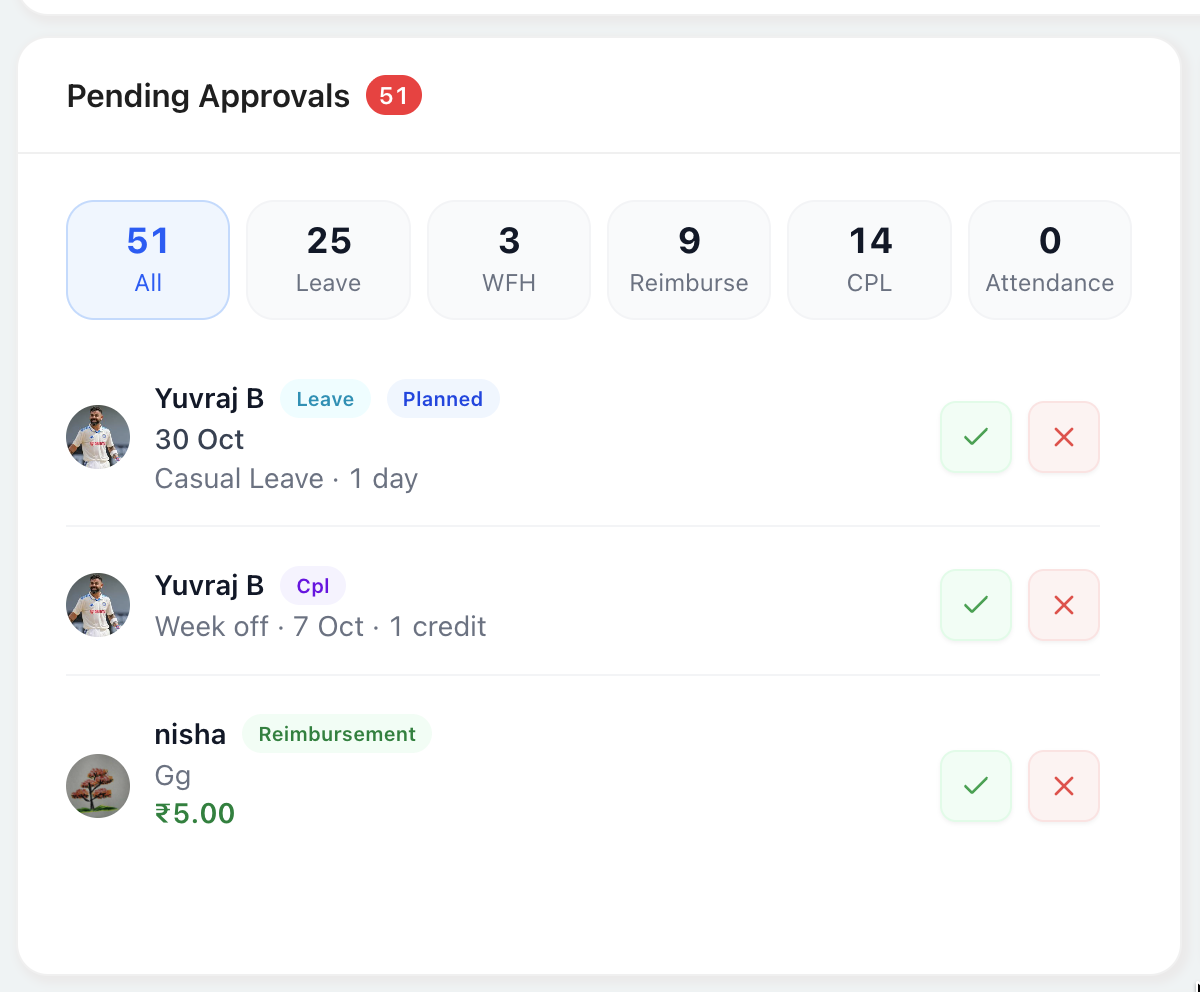
Pending Approvals contains requests that require a decision from you because of your manager or approver relationship. The count beside the widget title is the total number awaiting action.
Use the request-type filters to focus on Leave, WFH, Reimbursement, CPL/comp off, or Attendance requests. Review the request details before using the approve or reject action. Select All to return to the complete queue.
Today's Attendance
Today's Attendance shows your current attendance state, recorded time, and remaining expected work time. Use Clock In to start web attendance and Clock Out to end it. You can clock in and out multiple times during the day when the organization allows it.
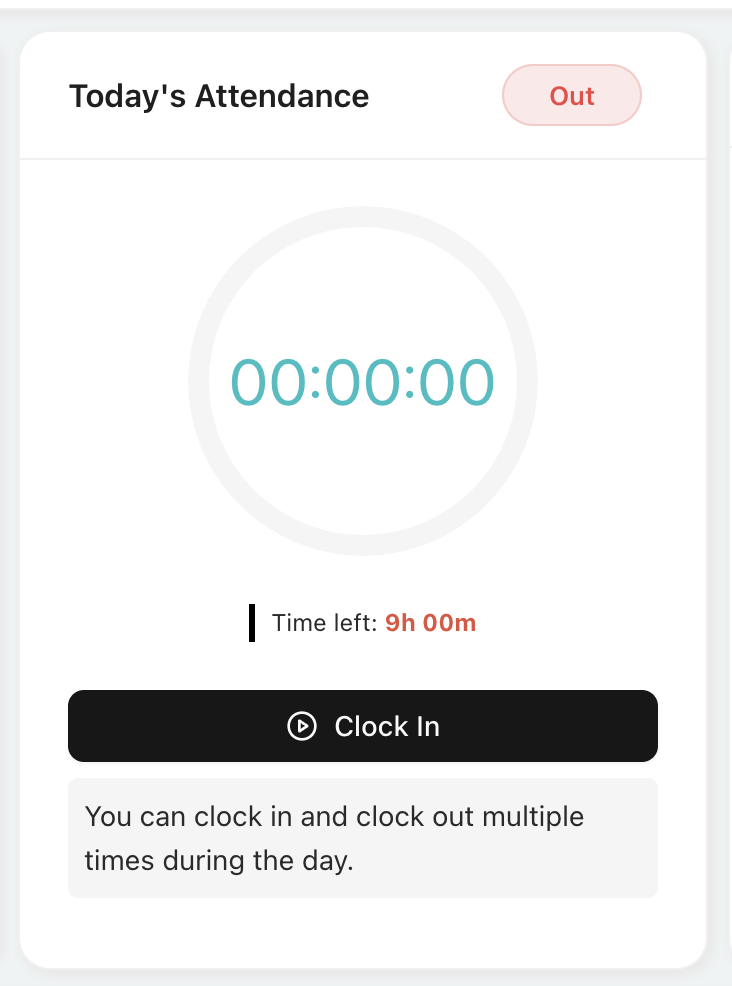
Web check-in availability and the resulting attendance record follow your assigned shift and the organization's attendance rules.
Attendance Overview
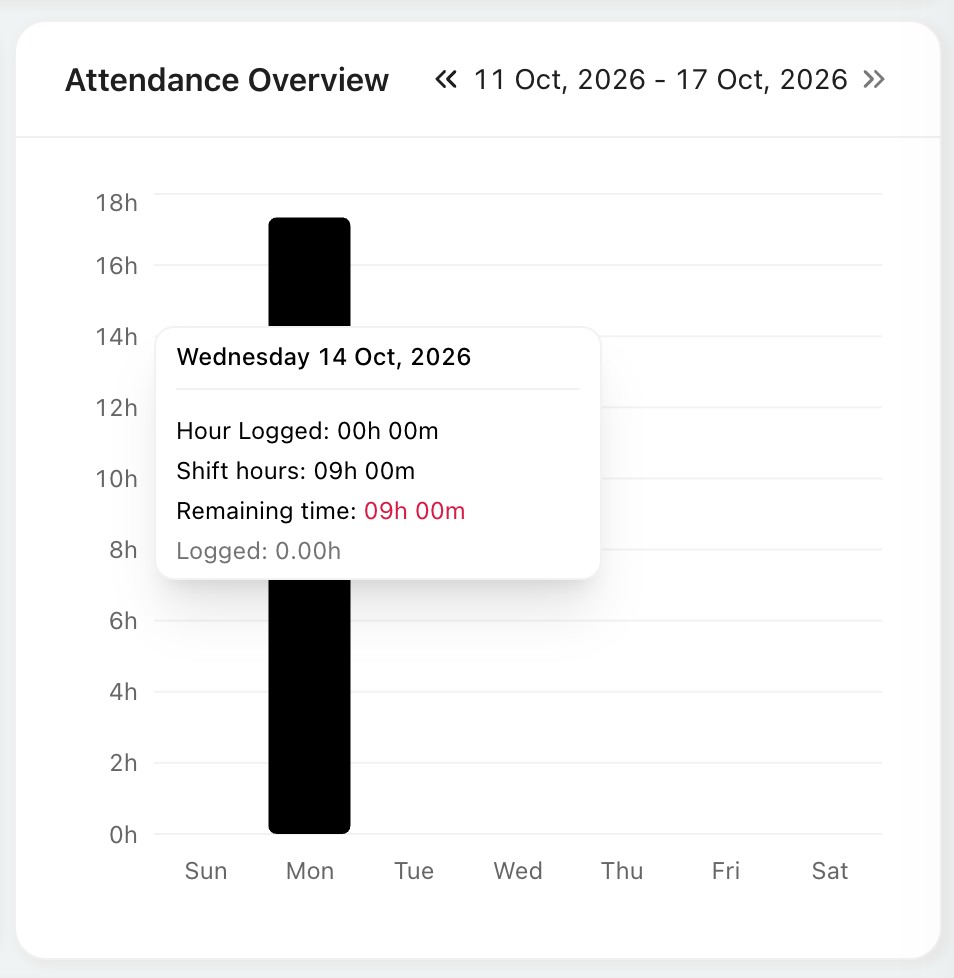
Attendance Overview charts your working time for the selected week. Use the arrows in the widget header to move to the previous or next week. The date range in the header confirms which week is currently displayed. Hover over a day to review its hours logged, shift hours, remaining time, and logged total.
Working History
Working History gives a day-by-day attendance history for the selected date range.
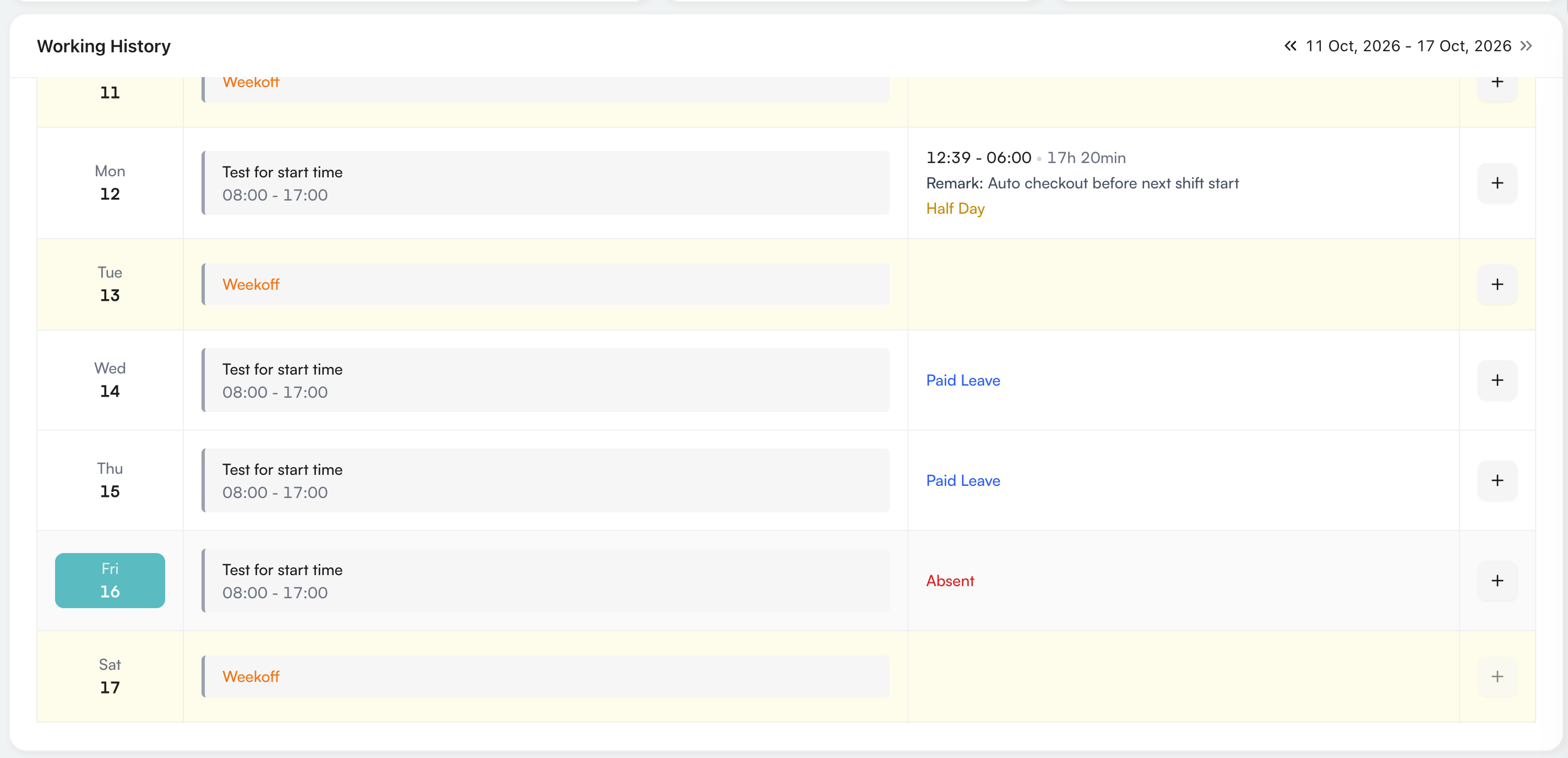
Each row can show:
- The weekday and date.
- Your assigned shift and scheduled start and end time.
- Recorded check-in and check-out times and total working duration.
- Attendance remarks and statuses such as half day, paid leave, absent, or week off.
- A + action for raising an attendance regularization request for that date.
Use the arrows in the top-right of the widget header to change the displayed date range. When requesting regularization, explain the correction and provide any evidence required by your organization.
Leave Balance
Leave Balance summarizes leave allocated to you and how it has been used.
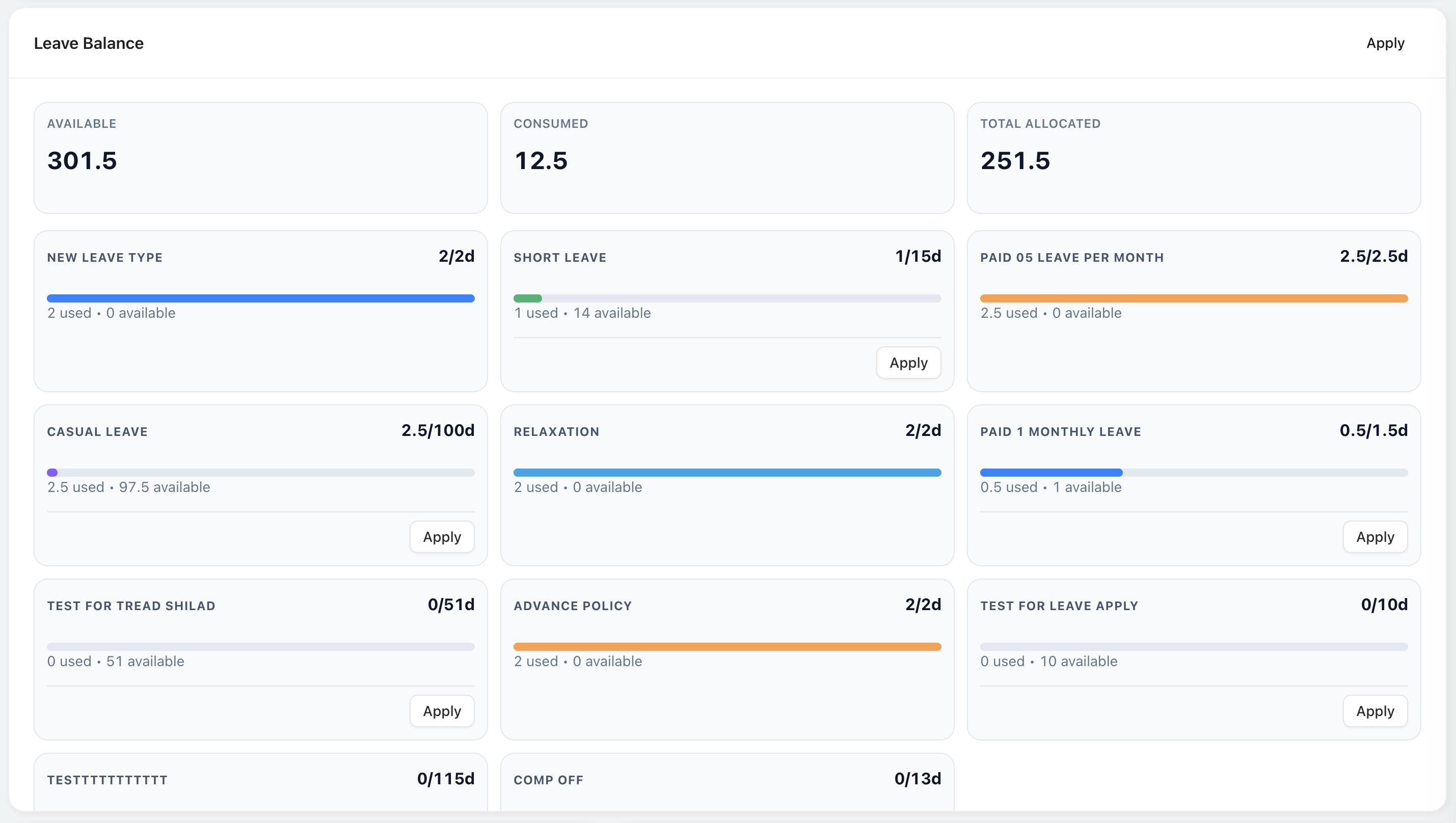
The summary shows Available, Consumed, and Total Allocated leave. Each leave-type card shows its used and available values and a progress indicator. Select Apply on an eligible leave type—or the header action—to begin a leave request. An apply action is not shown when that leave type is unavailable for a new request.
Balances are calculated from your assigned leave policies, accruals, adjustments, and approved leave.
Leave Requests
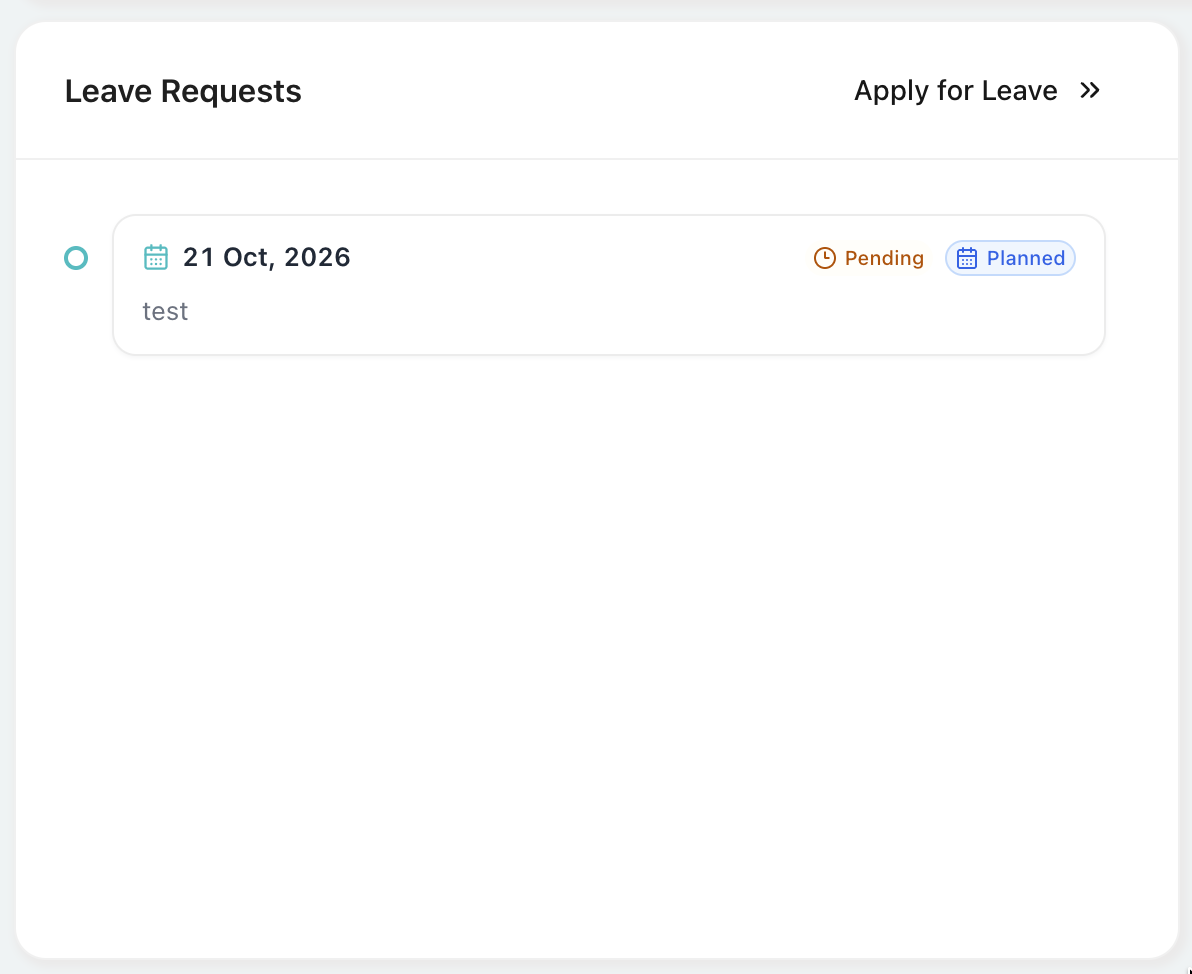
Leave Requests shows your recent leave applications, including the leave date, request status, leave type, and available description. Select Apply for Leave in the widget header to create another request.
Upcoming Events
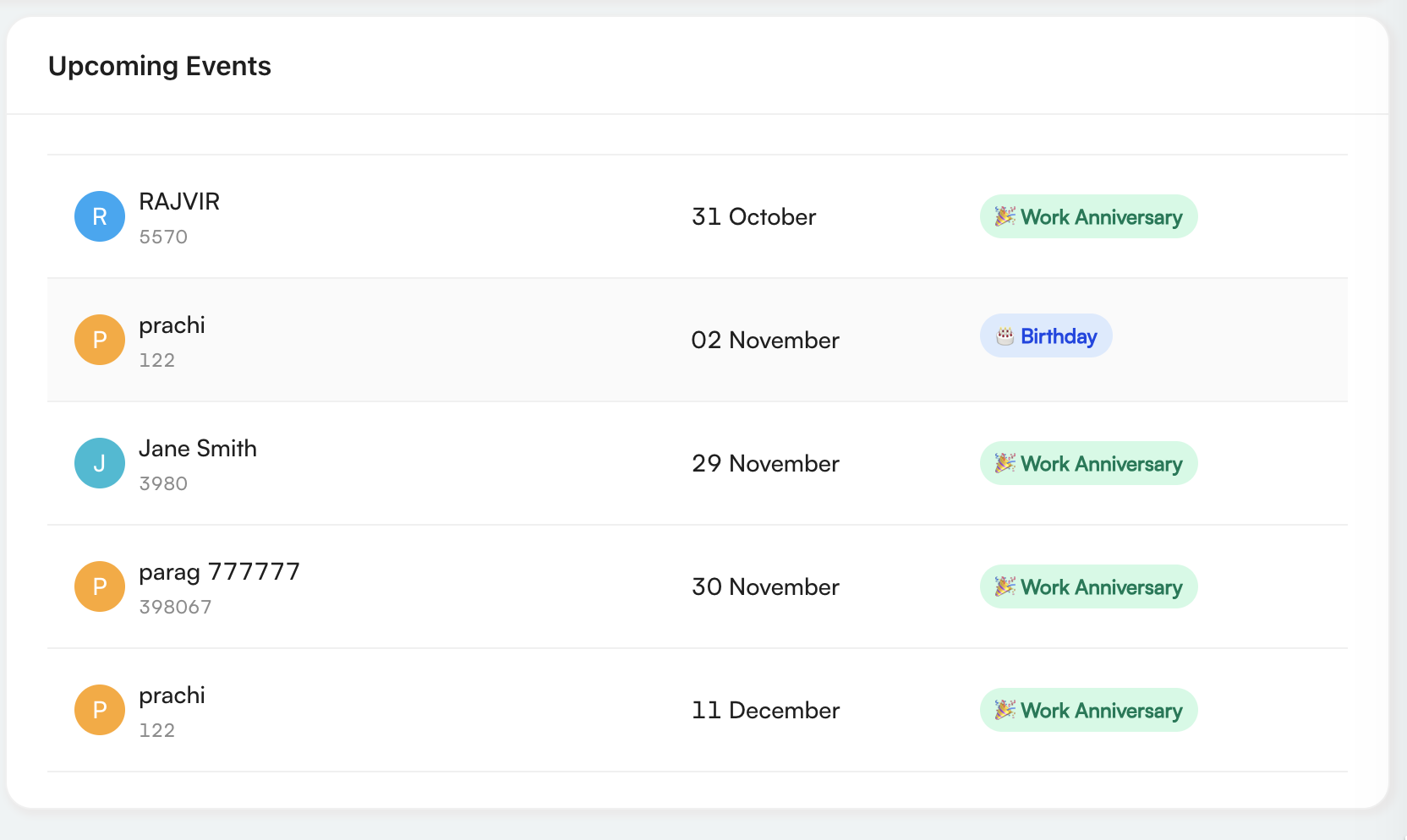
Upcoming Events lists employee events relevant to you, such as team-member birthdays and work anniversaries. Each row identifies the employee, employee identifier, event date, and event type.
Time Sheet
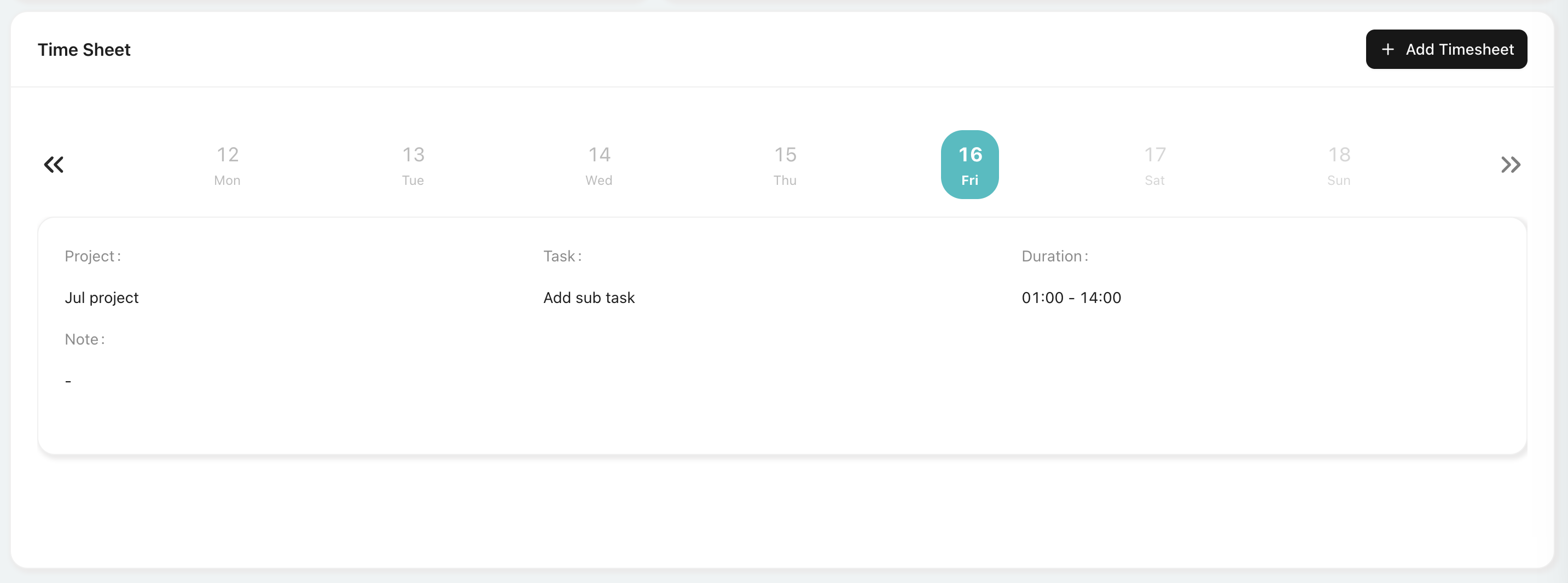
Time Sheet shows your timesheet activity for the selected day. Use the date strip or its arrows to change the day, and select Add Timesheet to record time for an available project, task, or activity. An existing entry shows its project, task, duration, and note.
Typical dashboard workflow
- Check Pending Approvals for decisions that need your attention.
- Use Today's Attendance to clock in or out when web attendance is enabled.
- Review attendance, leave, upcoming events, and current work.
- Use a widget action or New Request to start the required workflow.
- Rearrange or resize the widgets when you want a different personal layout.
Empty widgets are normal when there is no information for the selected period or no record involving you.